MAT Nav Menus
Overview
MAT Nav Menus lets a multi-academy trust keep one list of shared links — trust policies, governance, trust vacancies — on the trust's central website. Those links are offered in a MAT Menus box on Appearance → Menus. When the trust changes a link's title or address centrally, the change is written into the menus that already use it.
It is for trusts only. Which website is the trust's central site comes from Realsmart's records of your trust, so the MAT Links page exists only on that website. Link updates reach the schools listed in the central website's MAT Multisite settings.
Getting set up
Step 1: Open the MAT Links page on the central website
On the trust's central website, signed in as an administrator, open the MAT Links page in any of these ways:
- In the left-hand menu, select Smart Plugins → Mat Nav.
- Go to Plugins, find MAT Nav Menus and select its Settings link.
- Or type your website address followed by
/wp-admin/admin.php?page=mat-nav-menus.
On any other website the page is not available and WordPress says you are not allowed to access it.
Step 2: Add a trust link
Under Add a MAT Link, enter the Title the menu should show and the full URL, then select Add a new Link. The link appears under Existing MAT Links.
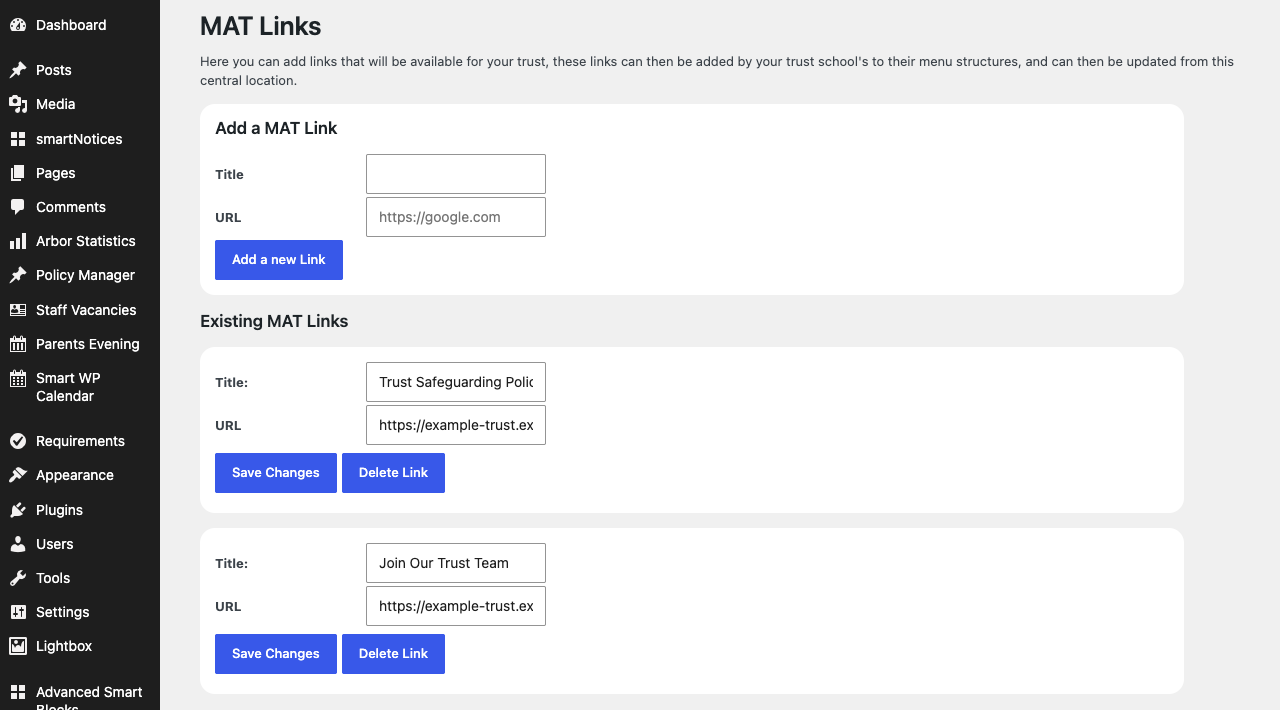
Step 3: Add the link to a menu
Go to Appearance → Menus and choose the menu to edit. In Add menu items on the left, open MAT Menus, tick the links you want and select Add To Menu. Drag them into place, then select Save Menu.
MAT links open in a new tab. After saving, they are listed in the menu structure as Custom Link.
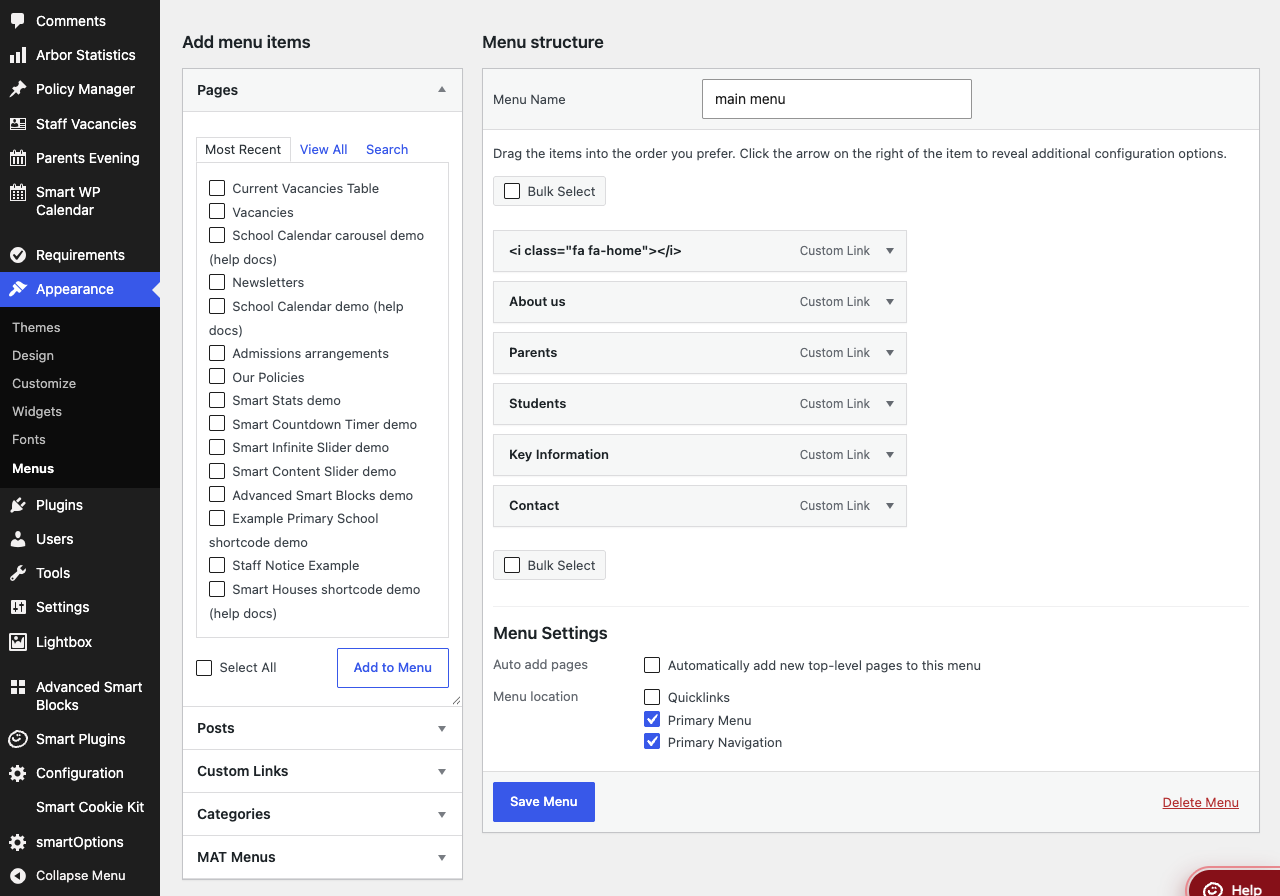
Features
MAT Links
Where to find it: Smart Plugins → Mat Nav (central trust website only)
| Setting | What it does | Default |
|---|---|---|
| Title | The text the menu item shows | Empty |
| URL | The full web address the link goes to | Empty |
| Save Changes | Saves an edited link, and updates the title and address of that link in the menus that use it | — |
| Delete Link | Removes the link from the MAT Links list | — |
Only administrators of the central website can add, change or delete MAT links.
Updating a link everywhere
Change the Title or URL of an existing link and select Save Changes. The new title and address are written into the menu item that uses that link on the central website and on each school listed under Site IDs in the central website's Smart Plugins → Multi Site. A school that is not listed there keeps the old title and address. Only one menu item per website is updated, so if a website has the same MAT link in more than one menu (or twice in one menu), the others keep the old title and address.
If a school's website cannot be reached while saving, the link is still saved and the other schools are still updated; a red notice at the top of the page lists the schools that were skipped. Select Save Changes again later to retry them.
Deleting a link only removes it from the MAT Links list. Menu items already using it stay in those menus until each school removes them.
The MAT Menus box
Where to find it: Appearance → Menus → Add menu items → MAT Menus
The box lists the trust's links from the central website, and shows "No MAT links." when there are none. New or changed links can take up to five minutes to appear in it. Anyone who can edit menus can use it.
Troubleshooting
I cannot find Mat Nav under Smart Plugins
Mat Nav only appears under Smart Plugins on the trust's central website, and only for administrators. On any other website it is not shown.
The MAT Links page says I am not allowed to access it
Either this is not the trust's central website, or you are not an administrator. Which website is central comes from Realsmart's records of your trust — contact Realsmart support if the wrong website is treated as central.
The MAT Menus box says "No MAT links."
No links have been added on the central website yet, or they were added in the last few minutes. Add them on the central website's MAT Links page, wait five minutes and reload Menus.
Add To Menu does not add the link on a school website
At present, ticking a link in MAT Menus and selecting Add To Menu only adds it on the trust's central website itself; on other school websites nothing is added. This is a known problem — contact Realsmart support. Until it is fixed, a school can add the same title and address as a Custom Link, but that item will not receive the trust's later changes.
A school's menu did not change when I edited a link
The school must be listed under Site IDs in the central website's Settings → Multisite Post, and its menu must contain an item added from the MAT Menus box — a Custom Link typed in by hand is not updated.
Did this work for you?
If a step looked different on your site, tell us and we'll update the screenshots.
Thanks for your feedback.