Using global search
The global search (command palette) lets you find users, groups, pages and help guides from anywhere in ADAdmin — and ask questions in plain English — without navigating to a specific section first.
Type a question like "how do I suspend a user" and the matching help guides appear right in the results with a short preview, at the top of the list. (A query counts as a question if it starts with how, why, what, where, when, can, do, does, is, should, who or which, ends in a ?, or runs to four or more words.) Typos are forgiven ("suspnd" still finds the guide). If a query looks like a task ("create a user jane smith", "reset password for jane"), a Do it now row appears with up to three matching actions that open the right form (or answer, or confirm card) for you — see Ask the assistant to do things for the full list of what you can ask for. And for anything the instant results don't answer, the Ask the assistant row opens a conversation panel that answers in plain language, drawn from the help documentation itself.
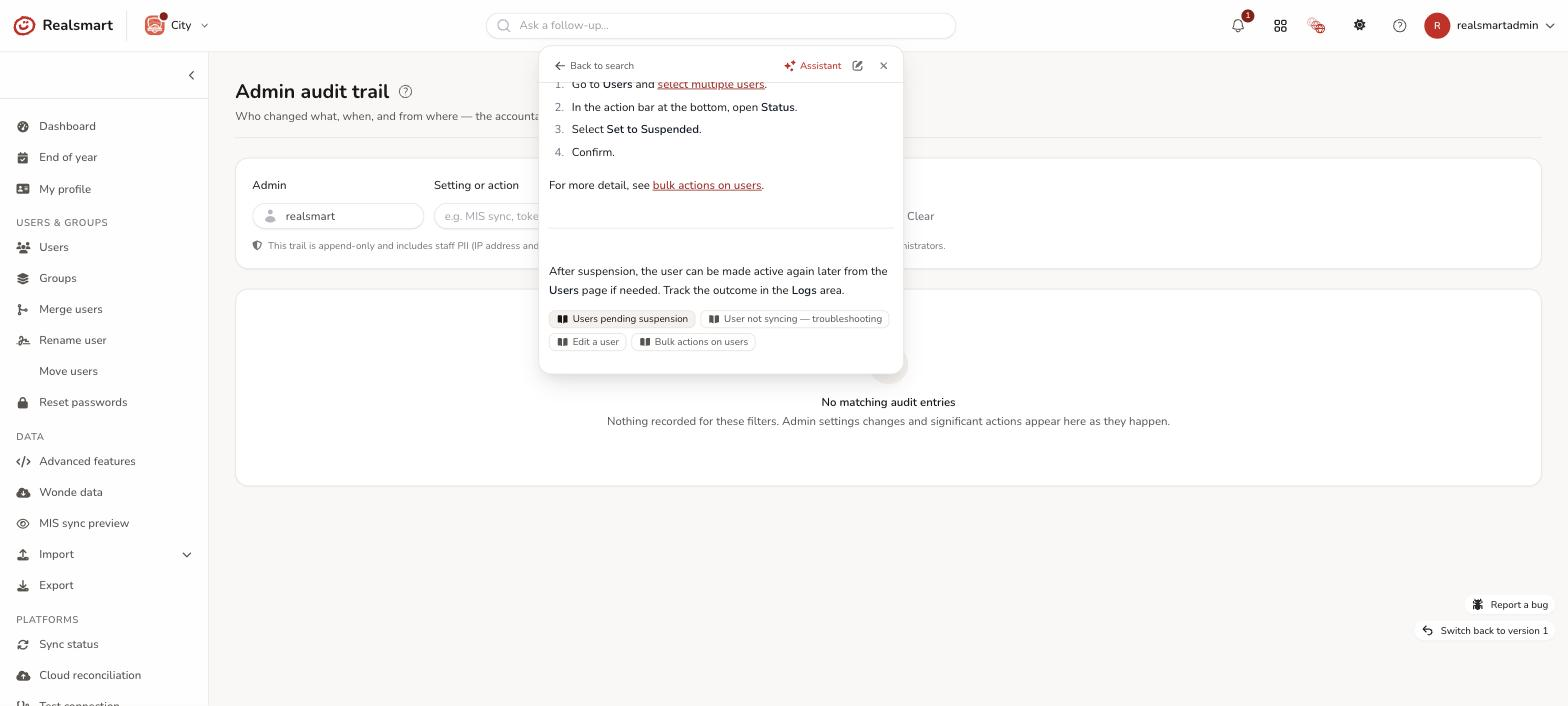
The assistant panel
Asking a question — from the search bar, the top bar's help menu (the ? icon, then Ask the assistant), or a page's own ? button (Help for this page, which starts with that page's guide) — opens the assistant in its own panel sliding in from the right, headed Assistant, separate from the instant-search results underneath. Your question, the answer, and anything you ask next (type in Ask a follow-up…) all stay in that one panel so you can keep the conversation going; closing it (Escape, clicking outside, or Back to search) and reopening the assistant later picks the same conversation back up, until it goes twelve hours without activity, after which it starts fresh. Once a conversation has started, use the pencil icon (New chat) in the panel's header to start a new one on purpose.
When an answer is about something the assistant can do for you, it ends with up to two Do it now buttons, such as Reset a user's 2FA. Select one and the box below fills with the start of the request ("reset 2fa for "): type the person's name and press Enter, and the assistant finds them and shows the usual card to check before anything changes. You only see the actions you're allowed to use, the same ones the Do it now row in search offers.
A follow-up is read with the rest of the conversation, so a short one works: ask "how do I reset passwords for a year group", then "and for one pupil?" or "will they have to change it?", and the assistant knows what you mean. It remembers the conversation for those same twelve hours. New chat makes it forget straight away, which helps when you move on to something unrelated.
The header also has a widen/narrow icon for longer answers or a wider screen — it remembers your choice for next time you open the assistant, on this or another device.
Before you start
- You must be signed in as an admin, mentor, observer, governor, or ofsted account. Learners do not have access to user or group search, or to the assistant.
- Results are scoped to the school or schools you are currently authorised to see: the school you're working in, or every school you can reach when you're in MAT overview.
- Opening a user or group from the results, and the Do it now row, need Manage users & groups — so in practice they're for admins. Mentors, observers, governors and Ofsted accounts can still find people and groups (they're listed, but greyed and not clickable), jump to pages and help guides, and ask the assistant for guidance.
- The search bar needs a window at least 768 pixels wide, and the top bar's help menu 640. On a phone, use Help in the menu, or a page's ? button, to reach the assistant.
Steps
Step 1: Open the search
Select the search bar in the top centre of any page (Search or ask a question…), or press ⌘K (Mac) or Ctrl K (Windows / Linux).
The search panel opens under the bar with a text field ready to type.
Step 2: Type your query
Start typing a name, username, page name, or plain-English request. Results appear after you have typed at least two characters, grouped into up to five sections. For a question-shaped query Help guides come first; for anything else they come last:
- Do it now — up to three matching actions, if your text looks like a task the assistant can resolve (admins who can manage users only)
- Help guides — up to four matching help articles, with a short preview
- Pages — up to five matching pages from the sidebar navigation (only pages you can open)
- Users — up to five matching people in your authorised school(s), with their avatar, username and role. It matches part of a name, a username, or a UPN / staff code; deleted users aren't listed
- Groups — up to five matching groups (deleted groups aren't listed)
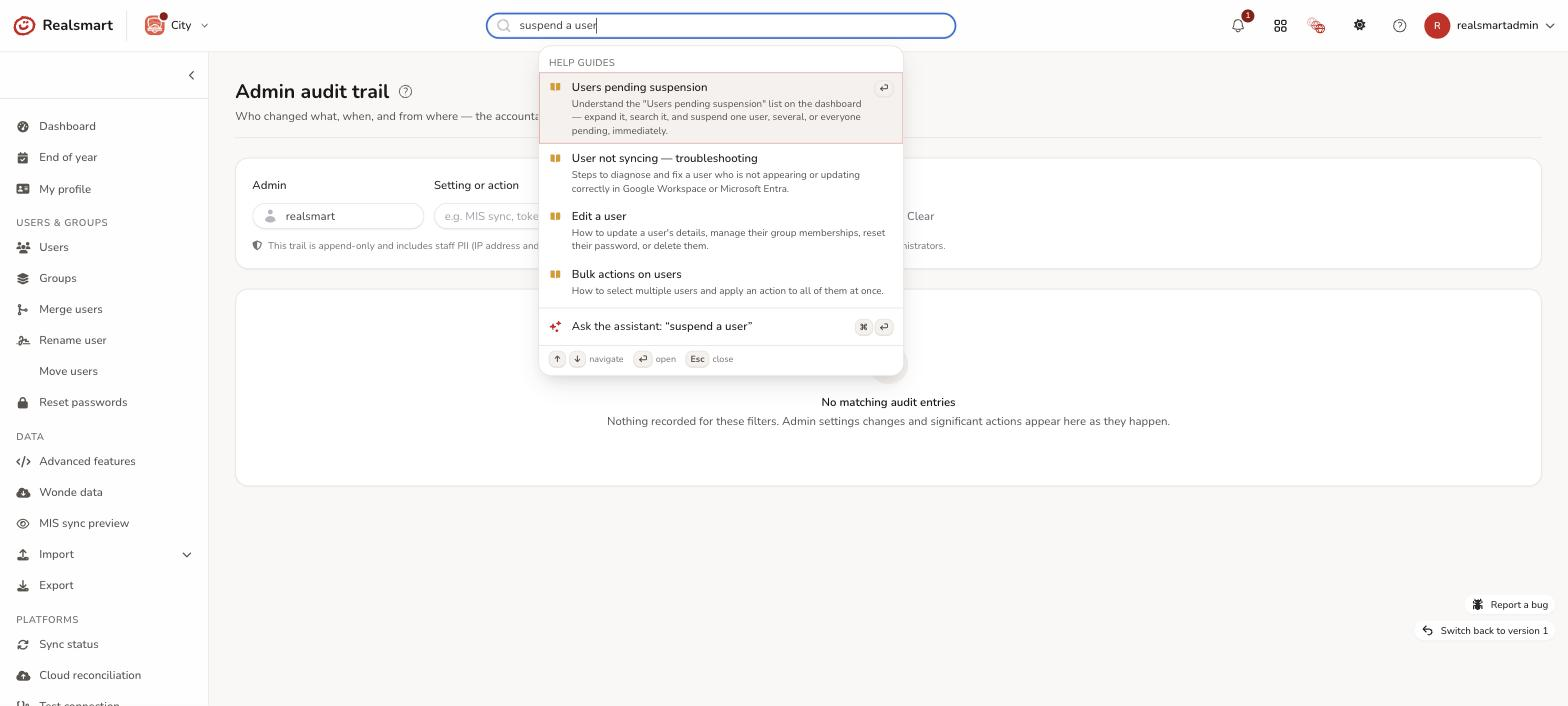
Nothing matching shows No direct matches for "…" — the Ask the assistant row underneath is always there.
Step 3: Select a result
- Use ↑ and ↓ arrow keys to move through results
- Press Enter to open the highlighted result
- Or click a result directly
- To ask the assistant instead, move to Ask the assistant and press Enter, or press ⌘ Enter / Ctrl Enter from anywhere in the box
Selecting a user or group opens their edit page. Selecting a page or a help guide navigates to it.
Step 4: Close without selecting
Press Escape or click outside the panel to close it.
Result
You land on the selected user, group, page or help guide. If you selected a user or group in a different school from your current active school (or you were in MAT overview), ADAdmin automatically switches to that school first.
Troubleshooting
- A person or group is listed but I can't click it. Opening their page needs Manage users & groups, which mentors, observers, governors and Ofsted accounts don't have. An admin with a reduced Access tab may not have it either — see Reduced admin access.
- There's no search bar. Learners don't get search, and the bar is hidden on windows narrower than 768 pixels. Widen the window, or use Help in the menu.
- A person I know exists doesn't appear. Search covers only the school you're in (or, in MAT overview, schools you can reach), and leaves out deleted accounts. Switch school, or search from MAT overview.
- The assistant says it did not keep what I typed. The text looked like it contained a password or a code, so it was thrown away rather than sent anywhere or saved. Passwords are never typed into the assistant. To give someone a specific password, open their page and use the Set a password form; to reset one to the school default, ask the assistant to "reset password for" them.
- The assistant linked me to part of a guide instead of answering. For a long guide, the assistant reads only the parts that match your question, and links to a part it didn't read rather than guess what it says. Open the link, or ask again using that part's name.
Related
Did this work for you?
If a step looked different on your site, tell us and we'll update the screenshots.
Thanks for your feedback.