Launchpad widgets (Microsoft 365 — Outlook and Teams)
Six widgets bring Microsoft 365 onto your school's launchpad.
From Outlook (calendar and email):
- My calendar (staff, and pupils if you choose): their own Outlook calendar for today and tomorrow, alongside their timetable, with a Join button for Teams meetings about to start. Private events show as "Private".
- Unread mail (staff, and pupils if you choose): how many unread emails are in their inbox, on the Outlook tile.
- School calendar (pupils and staff): events from up to five of the school's shared mailboxes — school events, sport, trips — for the next 14 days, in Coming up. Private events are never shown.
From Teams (classwork):
- Due work (pupils): their Teams assignments due in the next 7 days, missing work and work returned to them.
- To review (staff): how many handed-in assignments are waiting in each class team they teach.
- My classes (pupils and staff): their class teams, who teaches them, and a link to open each in Teams.
Realsmart only ever reads Microsoft 365 for the widgets: nothing in Microsoft 365 is changed, apart from one administrative unit Realsmart can keep for you (see Scope types). It never reads an email, an attachment, a chat, a file, a grade or feedback.
What it looks like
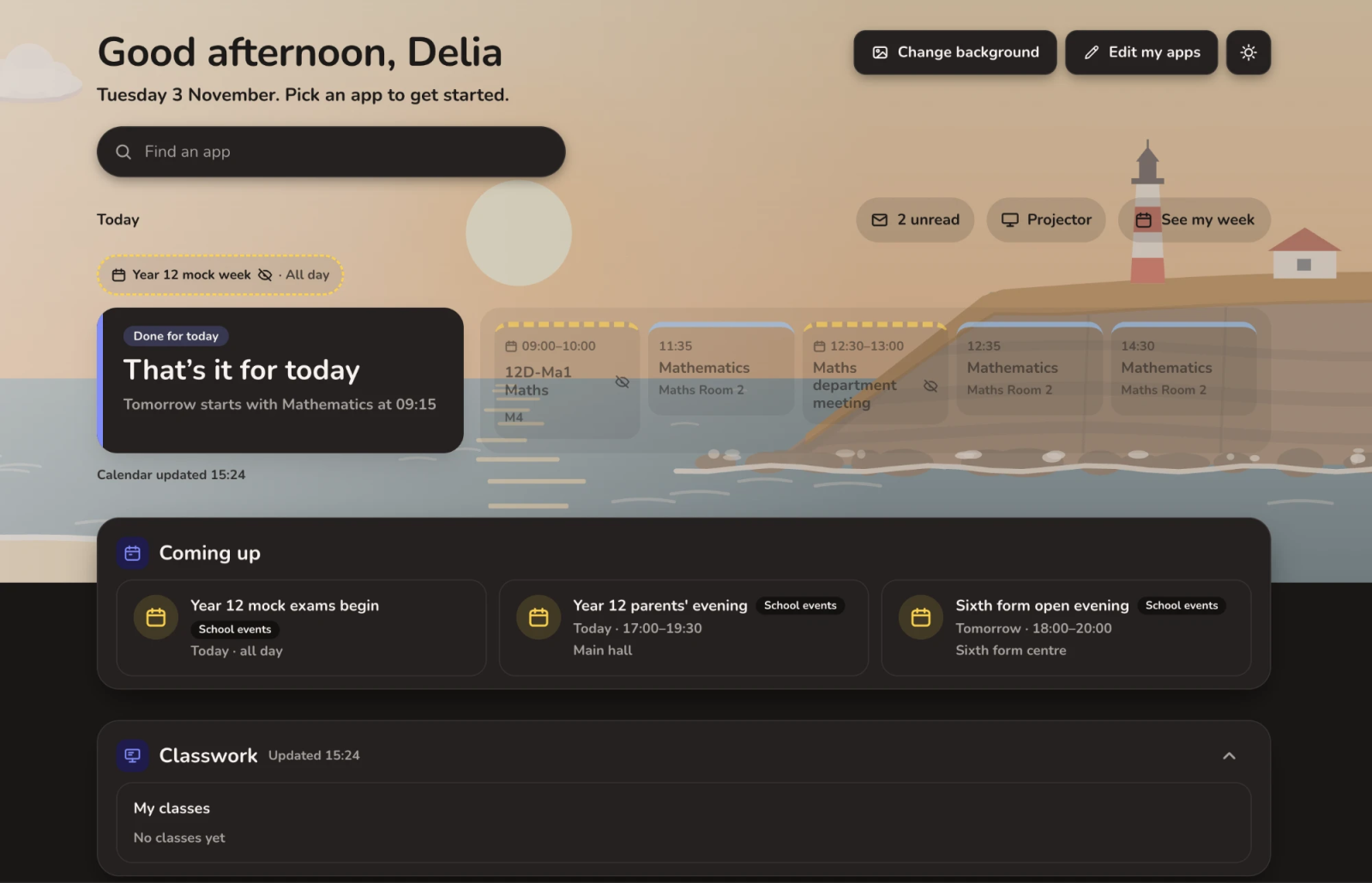
A teacher sees their own Outlook events beside their timetable, their unread count on the Outlook tile and the school's events in Coming up. Event titles show only once they choose Show my event titles; until then each event says Busy, so a projected screen gives nothing away.
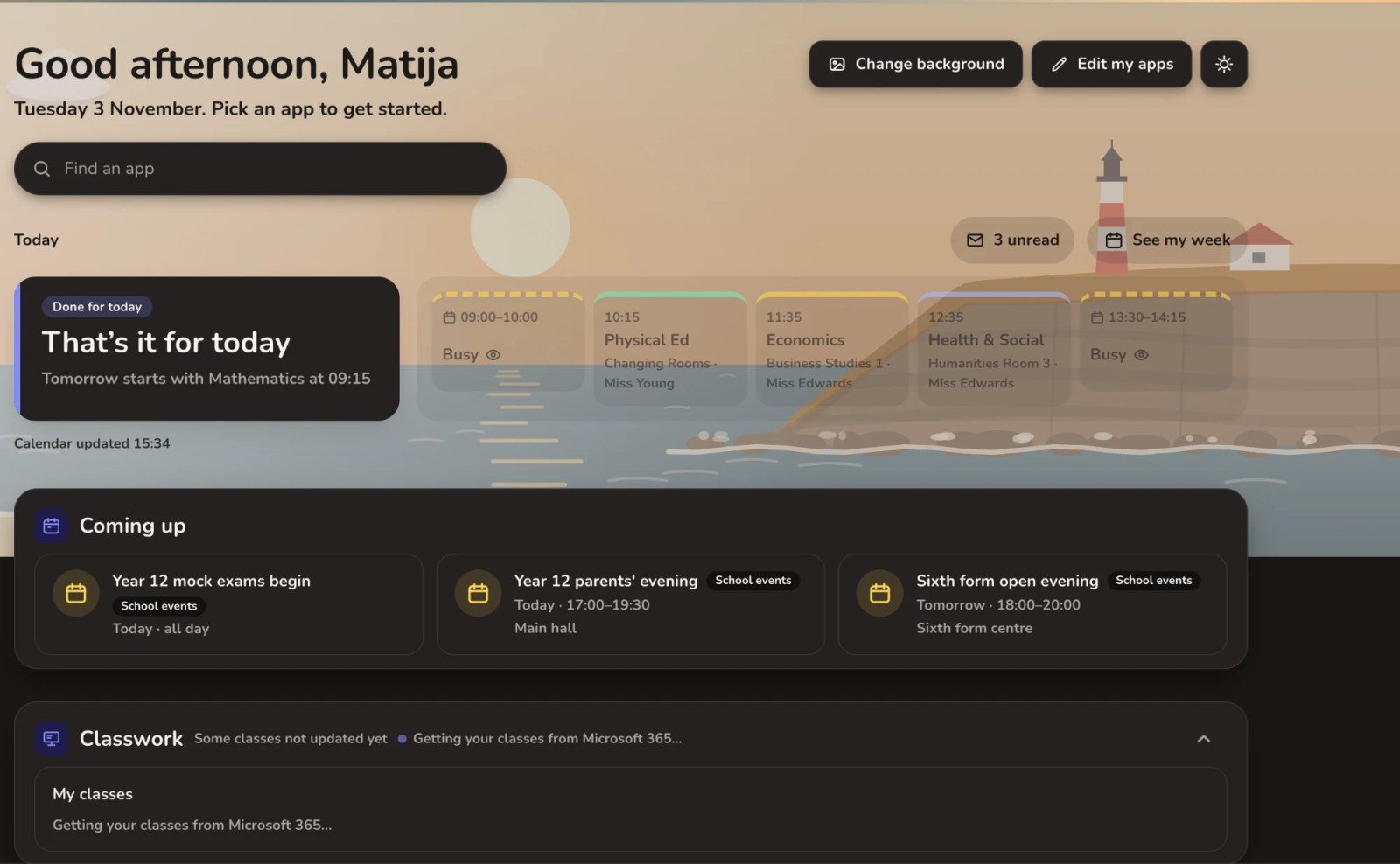
A pupil sees the same, for their own calendar and inbox.
Before you start
- You need to be a school admin with sync settings permission, with the school selected in the switcher.
- Entra sync must be on for the school, with the Directory (tenant) ID entered under Entra sync → Settings — the GUID (for example
0f1e2d3c-…), not a domain such astrust.onmicrosoft.com. The widgets find people's Microsoft accounts through the Entra sync. - The widgets are being introduced school by school. Where your school has them, the sidebar shows Entra sync → Launchpad widgets.
Who does what, and how long
About 30–45 minutes of hands-on work, usually done the same day. In a trust that shares one Microsoft 365 tenant, the steps marked once per tenant are done once for every school.
| Step | Who | Hands-on | Then wait |
|---|---|---|---|
| 1. Choose whose mailboxes, the scope and school calendars | School admin, in Realsmart | 5 minutes | Realsmart makes its unit: about 10 minutes |
| 1. PowerShell part 1 | Global, Application or Cloud Application Administrator | 5 minutes, once per tenant | — |
| 1. PowerShell part 2 | Exchange Administrator | 10 minutes | Exchange applies it: 30 minutes to 2 hours |
| 2. Approve the Classes app | Global or Privileged Role Administrator | 2 minutes, once per tenant | — |
| 3–5. Check access, choose widgets, turn on | School admin, in Realsmart | 5 minutes | The widgets appear within a minute |
The first time in a new or small Microsoft 365 organisation, part 2 also asks you to run it again after about an hour (see step 1).
How the access works
Realsmart uses two of its own apps, separate from your Entra sync app:
- the Classes app ("Realsmart Launchpad – Classes") for Teams classwork. A Global Administrator approves it once for your tenant.
- the Mailbox app ("Realsmart Launchpad – Mailbox") for calendar and email. It has no mailbox permission of its own in Entra. Your Exchange administrator grants it read access to exactly the mailboxes you choose, through Exchange's role-based access for applications. Exchange itself refuses everything else.
Steps
Until the widgets are on, a line at the top of the page says where you're up to: the next thing to do, or what Realsmart or Exchange is waiting for (for example Step 3 of 5 · Waiting for Exchange).
Step 1: Calendar and email: choose whose mailboxes Realsmart may read
Open Entra sync → Launchpad widgets.
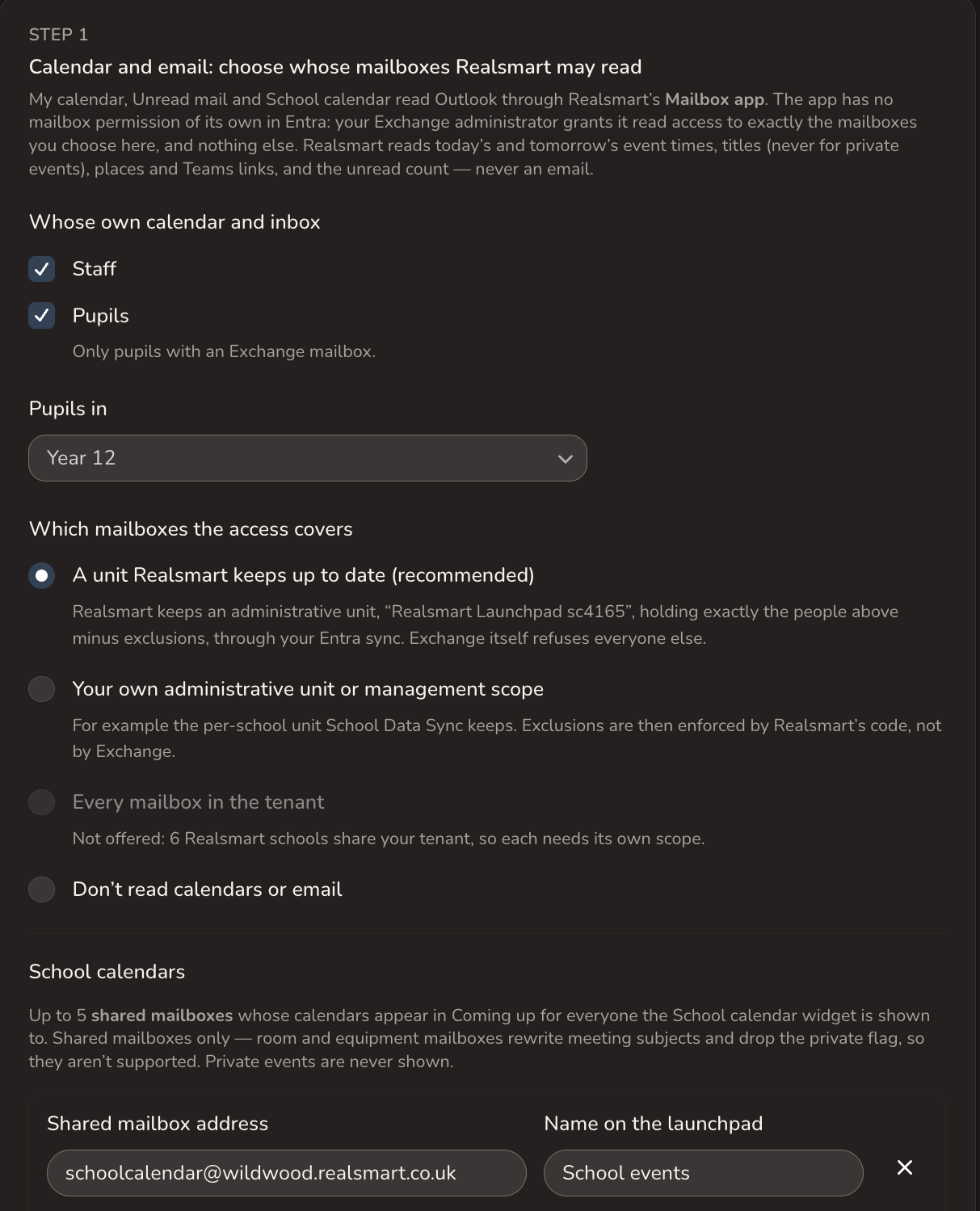
- Whose own calendar and inbox — staff, pupils, or both. For pupils you can choose year groups. Only these people can ever be shown My calendar and Unread mail.
- Which mailboxes the access covers — see Scope types and What the Microsoft 365 widgets can read.
- School calendars — up to five shared mailbox addresses, each with a short name for the launchpad (and, optionally, a link for "Open calendar").
- Select Save calendar and email settings.
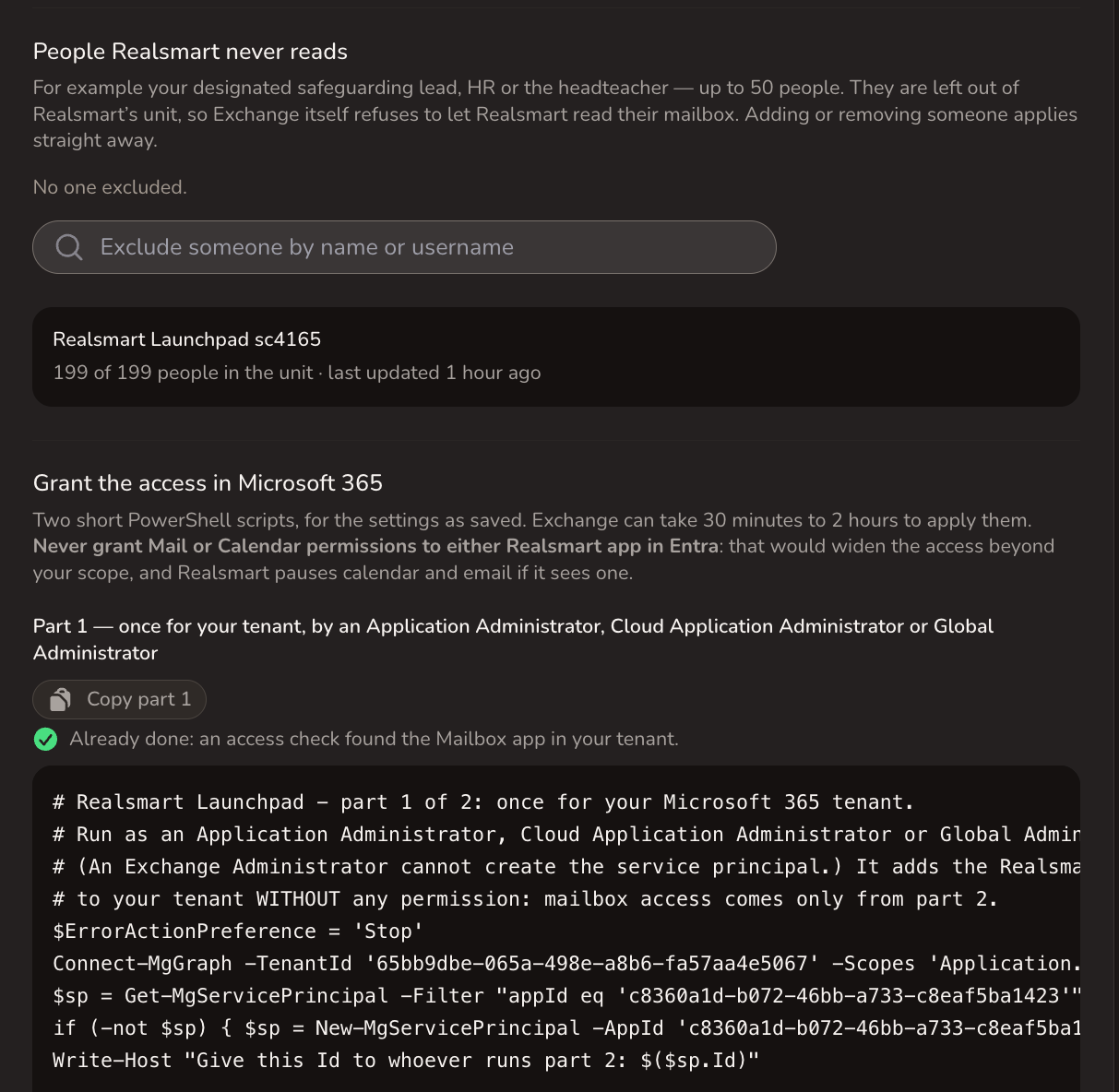
- People Realsmart never reads — add, for example, your designated safeguarding lead, HR or the headteacher (up to 50 people). Each change applies straight away. See People Realsmart never reads.
The page then shows a PowerShell script in two parts, for the settings as saved, each with a Copy button:
- Part 1 — once for your tenant, by an Application Administrator, Cloud Application Administrator or Global Administrator. It adds the Mailbox app to your tenant, with no permissions, and prints an Id. (An Exchange Administrator can't do this part.) If another school in your tenant has done it already, the page says Already done.
- Part 2 — for this school, by an Exchange Administrator. It registers the app in Exchange, grants it
Application Calendars.ReadandApplication Mail.ReadBasicover your scope, adds the school-calendar scope (shared mailboxes only), and shows what the app may now read. Paste all of it into Exchange Online PowerShell in one go; it asks for the Id part 1 printed. It is safe to run again. In a new or small Microsoft 365 organisation, the first run switches on custom Exchange permissions and stops, asking you to run the whole script again in about an hour — that one-time change doesn't alter anything people see. Run it again then.
Exchange can take 30 minutes to 2 hours to apply the changes (plus the hour before the second run, the first time in a new or small organisation). Never grant Mail or Calendar permissions to either Realsmart app in Entra: that would widen the access beyond your scope, and Realsmart pauses calendar and email for your whole tenant if it sees one.
Step 2: Teams classwork: approve the Classes app
Step 2 shows your tenant ID, the three permissions the Classes app asks for, and what each is for:
EduAssignments.ReadBasic.All— assignments and whether they're handed in, without grades. For Due work and To review.EduRoster.Read.All— classes and who teaches them. For My classes and To review. Microsoft lets this permission read every class and Education user record in your tenant, including addresses, contacts and, where School Data Sync fills them, pupils' dates of birth. Realsmart reads only IDs and names, and only for people at schools that switch the widgets on.Team.ReadBasic.All— a class team's name and link, at most once a week, for "Open in Teams".
Select Get the consent link, then Open Microsoft consent — or Copy link for your Microsoft admin and send it to them. It must be approved by a Global Administrator or Privileged Role Administrator; Application Administrators can't approve these permissions. Microsoft then shows a Realsmart page saying whether it was approved. Either way, come back and select Check access — only a passing check proves the approval.
Teams classwork needs Microsoft Education class teams: made by School Data Sync, by Realsmart's own Class Teams with Assignments setting (see Class Teams with Assignments), or by hand with the Class team type. The standard Teams Realsmart makes with Create Teams have no Assignments, so the widgets can't use them.
Step 3: Check access
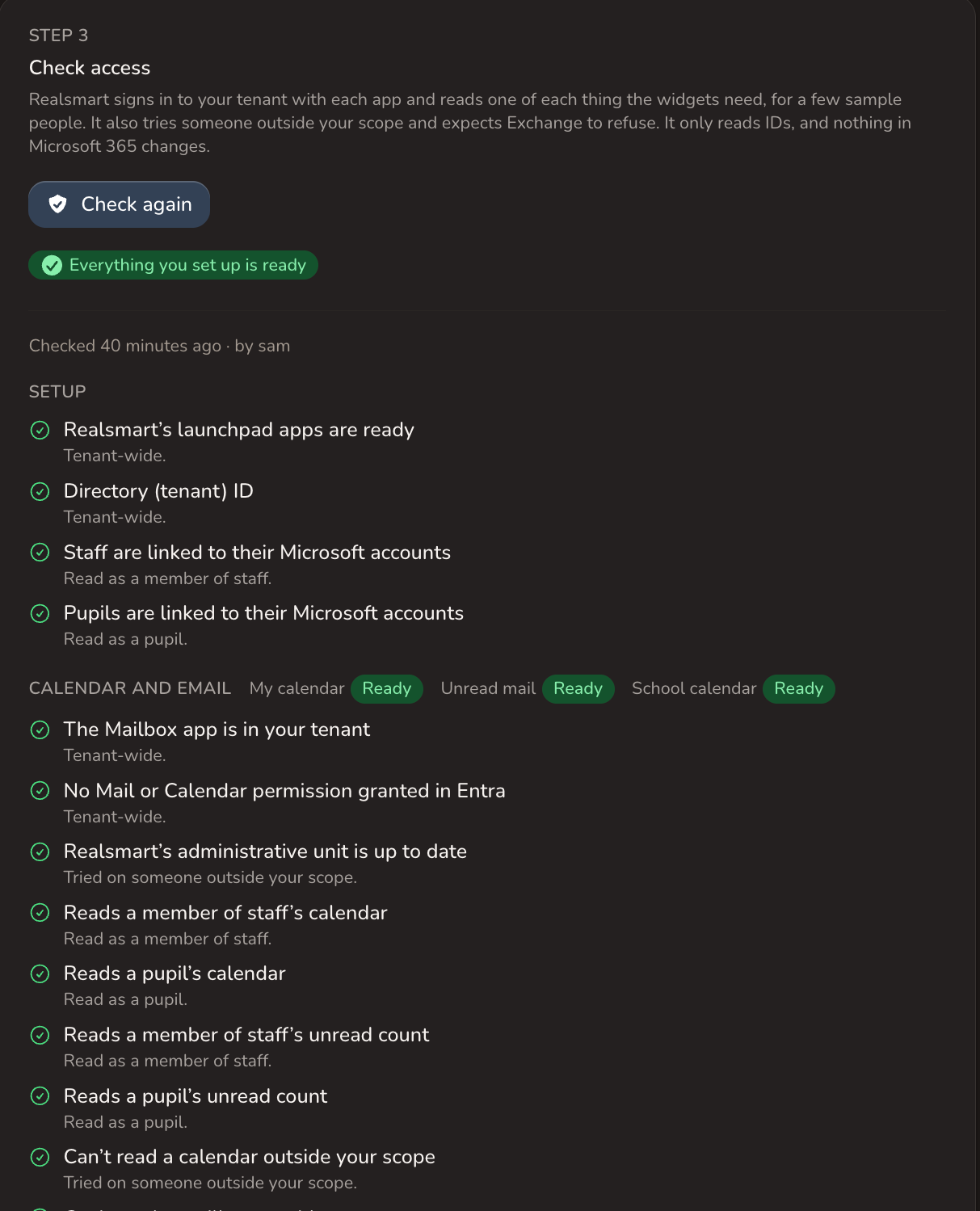
Select Check access. Realsmart signs in to your tenant with each app and reads one of each thing the widgets need for a few sample people — reading IDs only — and also tries someone it can prove is outside your scope, expecting Exchange to refuse. To test calendar and email it first looks for people in your scope who have a mailbox (up to 120 staff and 120 pupils, reading only whether each has an inbox), then tests a few of them. The results are grouped into Setup, Calendar and email and Teams classwork, with each widget marked Ready, or what it is waiting for, and a hint on every row that didn't pass.
- Scope not proven — Realsmart couldn't find anyone it can prove is outside your scope who has a mailbox to test against. It tries people you've excluded, staff or pupils outside the audience and year groups you chose, and (in a shared tenant) other schools' staff. With your own scope, calendar and email can still be turned on; the Turn on record notes it. With A unit Realsmart keeps up to date, My calendar and Unread mail can't be turned on until this passes — at least one of those outsiders needs an Exchange mailbox.
- Waiting for approval — the Classes app hasn't been approved for your tenant yet (step 2). Calendar and email don't need it.
- Not checked — Microsoft didn't answer in time. Select Check again.
- No mailboxes yet — for My calendar and Unread mail: nobody Realsmart could test has an Exchange mailbox (in your scope, or — for the "outside your scope" test — among the people outside it). Checking again won't help until they have one — see Troubleshooting.
Changing anything in step 1 means checking again before calendar and email can be switched on.
Step 4: Choose widgets
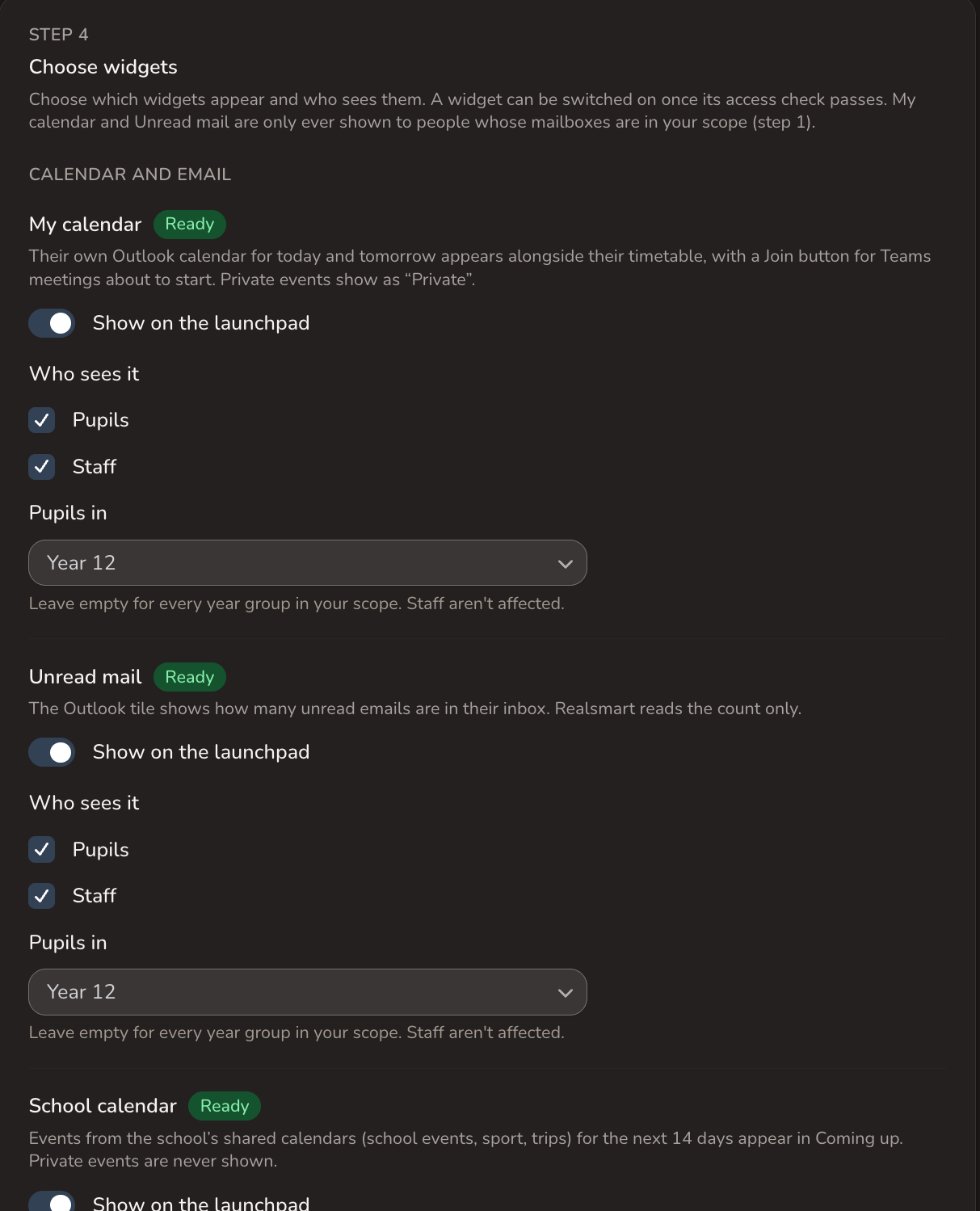
For each widget, switch Show on the launchpad on or off, choose who sees it and, for pupils, which year groups. A widget can only be switched on once its access check has passed. My calendar and Unread mail can only be shown to people whose mailboxes are in your scope. Due work is always for pupils and To review always for staff.
Under On their Launchpad, choose for pupils and for staff whether a widget is Always shown, Shown, they can hide it or Hidden, they can add it; people choose, and order their widgets, from the Widgets button on their Launchpad, and trust admins can set defaults for every school. See Let people choose their Launchpad widgets. Select Save widget choices.
Step 5: Turn on
Select Turn on and confirm. It works when Entra sync is live, the Directory (tenant) ID hasn't changed since the check, the last check passed in the last 24 hours, at least one widget is on, and every widget you've switched on is ready for the people you chose. Turning on records the tenant it was checked against. The widgets appear within a minute.
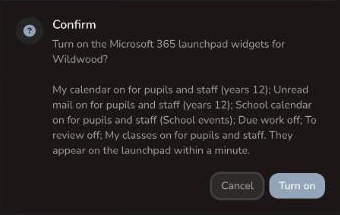
To stop, select Turn off. The widgets leave everyone's launchpad within a minute, and Realsmart stops reading Microsoft 365 for the school. Your choices, the access you granted and Realsmart's administrative unit are kept, so turning back on doesn't need part 2 again.
Scope types
Step 1 offers three scopes. A unit Realsmart keeps up to date (recommended) is an administrative unit, "Realsmart Launchpad scNNNN", holding exactly the people you chose minus exclusions, so Exchange itself refuses everyone else; it needs Sync administrative units on and AdministrativeUnit.ReadWrite.All. With Your own administrative unit or management scope, or Every mailbox in the tenant (only when yours is the only Realsmart school in the tenant), exclusions are enforced by Realsmart's code. What each needs, and how it behaves, is in What the Microsoft 365 widgets can read.
One tenant, many schools
When several schools share a Microsoft 365 tenant, the Classes app is approved and part 1 of the script run once for the tenant; each school runs its own part 2 with its own scope, checks access and turns the widgets on itself, and "Every mailbox in the tenant" isn't offered. See One tenant, many schools.
What Realsmart reads and keeps
Calendar events (never the body, attendees or attachments, and no titles for private events), the inbox's unread count only, the school calendars' next 14 days, and Teams assignments' titles, due dates and hand-in states — never grades or feedback. None of it is stored in Realsmart's database; it's held in a short-lived cache for about a day. The full list is in What Realsmart reads and keeps.
Removing access
Turn off stops Realsmart reading straight away but keeps your setup and Realsmart's administrative unit. To empty or delete the unit, remove the role assignments in Exchange, or end all access by deleting Realsmart's two enterprise applications, see Removing access.
"Needs attention"
When Microsoft has refused the school's or the tenant's access — the Classes app is no longer approved, the Mailbox app was removed, a permission is missing, mailboxes fell outside the Exchange scope, or a Mail or Calendar permission was granted in Entra — for at least half an hour with nothing working since, the page shows Needs attention with what to do, and the bell shows Microsoft widgets need attention (see Notifications). People still see the last data with its age. One person's mailbox failing never raises it.
These are launchpad matters, so they never appear under Entra sync issues.
Once the widgets are on, the page also shows How the widgets are running: when each widget last worked, any current error, the Realsmart apps' state in your tenant, the managed unit, how much of your tenant's Teams assignments budget Realsmart used at yesterday's busiest hour, and People who won't see Microsoft widgets — counts of active people with no linked Microsoft account, more than one, an account shared with someone else, a disabled account, or an exclusion.
Troubleshooting
- Turn on is greyed out. A line under it says why. The usual ones: Turn on Entra sync for this school first; Check access first (step 3); The last access check is more than 24 hours old. Select Check again first; The Directory (tenant) ID changed after the last access check. Select Check again; Switch on at least one widget (step 4). Do what it says, then check access again if it asks.
- "Add the Directory (tenant) ID first". Enter the tenant's GUID under Entra sync → Settings — not a domain. Every settings row for the school must hold the same value.
- "A unit Realsmart keeps up to date" is greyed out, or won't save. It needs Sync administrative units on, AdministrativeUnit.ReadWrite.All on your Entra sync app and a passing Test permissions run — see What the Microsoft 365 widgets can read. Or choose your own scope.
- "None of the N people checked in your scope has an Exchange mailbox yet". Realsmart couldn't find anyone in your scope with a mailbox, so My calendar and Unread mail can't be tested. Give those people a Microsoft 365 licence that includes Exchange Online (see Microsoft 365 licences); once Microsoft has made their mailboxes, select Check again.
- Calendar or email rows fail "not in scope". Run part 2 of the script, then wait: Exchange can take up to 2 hours.
- "Can't read a mailbox outside your scope" failed. Realsmart read a mailbox it should have been refused. Check part 2's role assignments use your scope, and that no Mail or Calendar permission was granted to Realsmart's apps in Entra.
- A school calendar isn't readable. It must be a shared mailbox in the school-calendar scope from part 2. Room and equipment mailboxes aren't supported: Exchange rewrites their meeting subjects with the organiser's name and drops the private flag.
- "Pupils aren't Microsoft Education users". Teams classwork needs School Data Sync, Realsmart's Class Teams with Assignments or hand-made class teams, so that pupils are Education users. The check's People are in Teams class teams row is for information only: it doesn't stop Due work being switched on.
- The widgets are still on but the page says the tenant ID changed. Realsmart stops reading Microsoft 365 when the tenant changes. Check access, then turn the widgets off and on again. If you use A unit Realsmart keeps up to date, the unit stays in your old tenant — contact Realsmart support.
Related
Did this work for you?
If a step looked different on your site, tell us and we'll update the screenshots.
Thanks for your feedback.