Enable or disable sync services
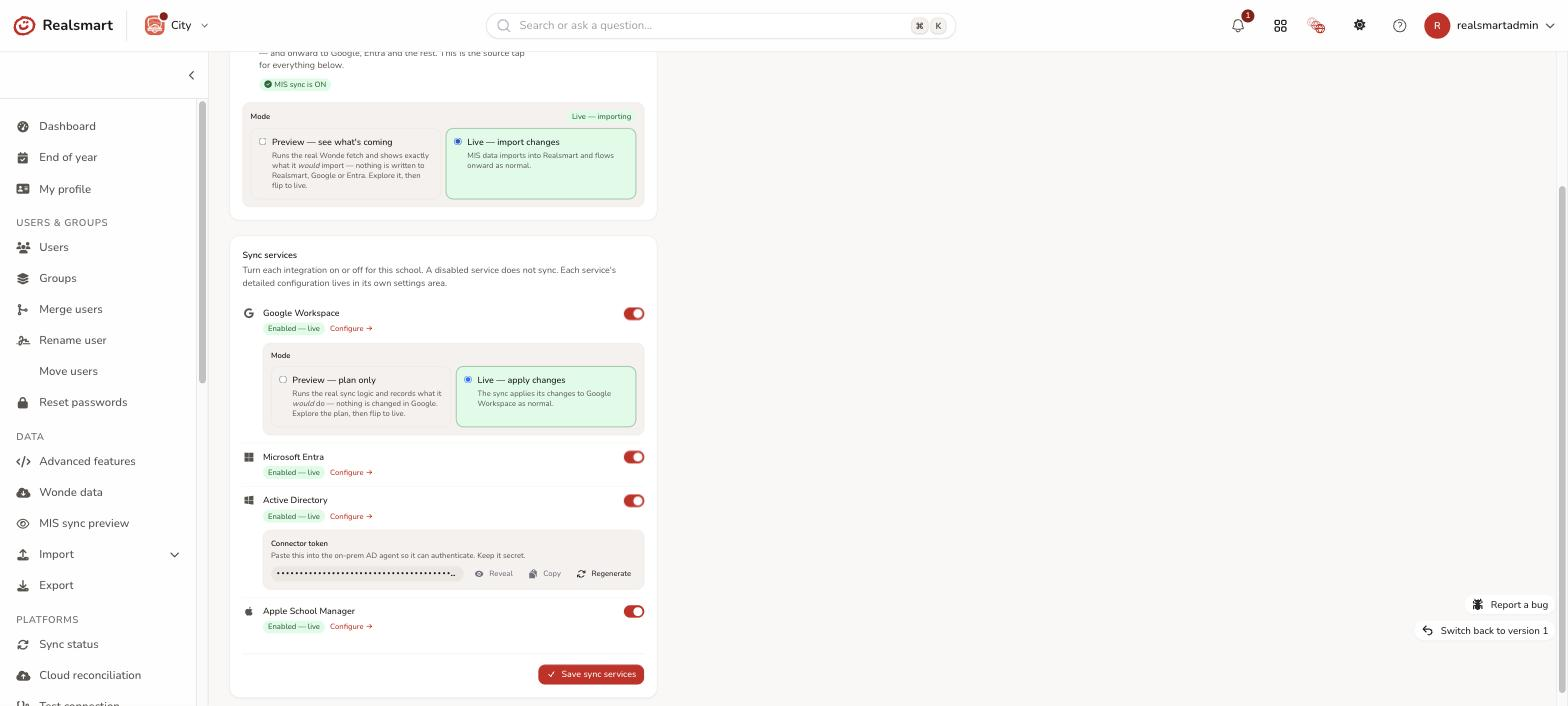
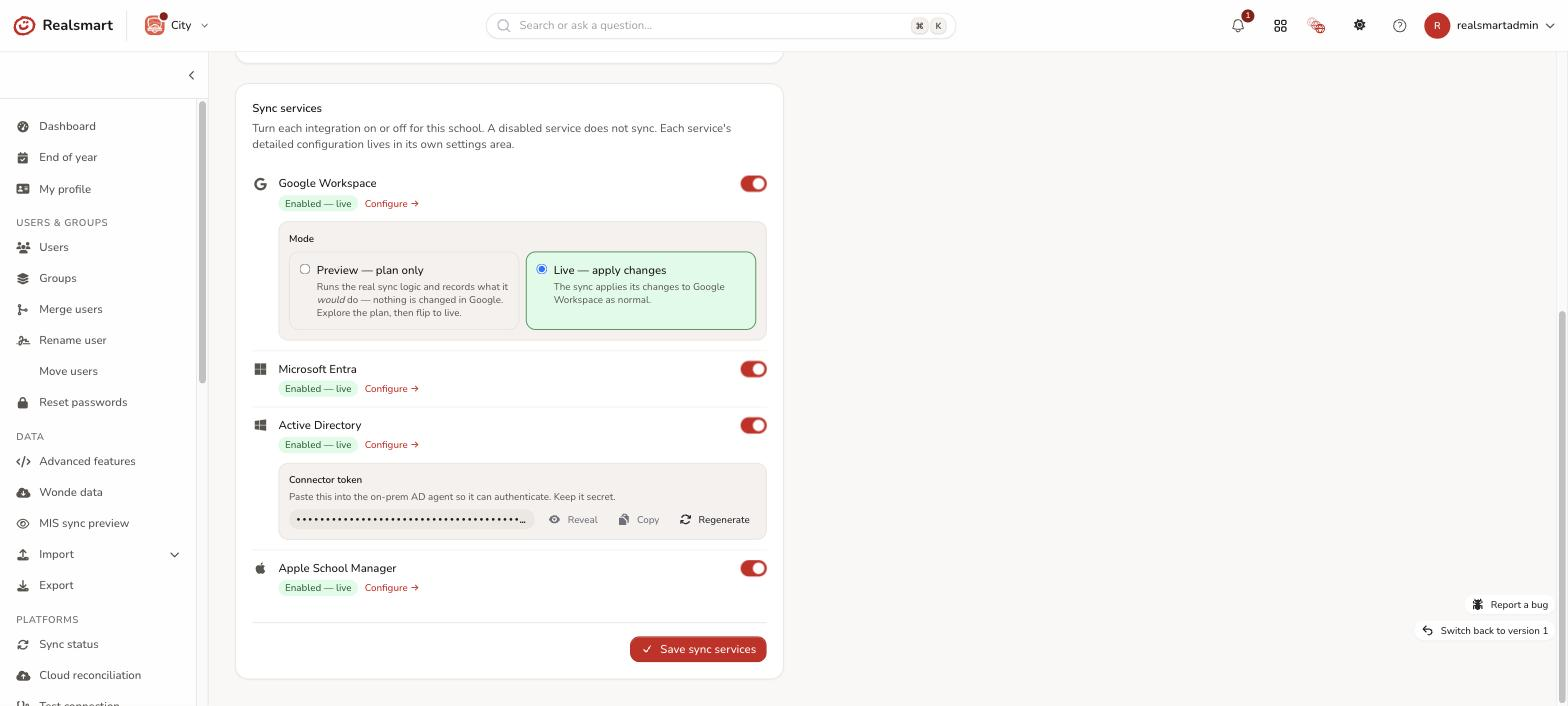
The Sync services tab of School settings is the master on/off switch for your MIS and for each integration — Google Workspace, Microsoft Entra, Active Directory and Apple School Manager. It answers "is this service on for this school?". Each service's detailed configuration (credentials, domains, OUs, options) lives in its own settings area, reached from Configure → here.
Before you start
- You must be a school admin with the Change sync, platform & API settings permission. Without it, the Sync services tab won't open, and you can't turn MIS sync on or off, change its mode, or regenerate the Active Directory token.
- Make sure a school is selected in the switcher — this is a per-school screen, not available in MAT Overview.
Steps
Step 1: Open the Sync services tab
Open School settings in the sidebar, then choose the Sync services tab along the top (it isn't a separate sidebar item). The page starts with two chips — MIS sync (showing On or Off) and Sync services — that jump to the two cards: the MIS sync card, then one row per service, each with its current status and a Configure → link.
Step 2: Toggle the service
Toggle the switch for the service you want to turn on or off.
A disabled service does not sync — the toggle is bound to the exact flag the provisioning service checks, so turning it off genuinely stops that service running for the school (it is not just hidden from the screen).
For Google Workspace, once it's on a Mode box appears: Preview — plan only (the sync runs and records what it would do, changing nothing in Google) or Live — apply changes. See Preview a sync before going live.
Step 3: Save
Select Save sync services. The status for each service updates to reflect the change. The four service switches and Google's mode save together.
MIS sync — the master switch
The MIS sync card sits above the services. It's the master switch for whether your MIS data flows into Realsmart — and onward to Google, Entra and the rest. Unlike the services below, it takes effect the moment you confirm; there's no Save button for it.
- MIS sync is ON (green) — shows Turn off MIS sync. A confirmation warns that MIS changes will stop syncing to Realsmart, Google and Entra — new pupils and staff, group changes and leavers — with no error shown while it's off, and that this is separate from the End of Year freeze. Confirm with Turn off sync.
- MIS sync is OFF — turned off manually (red) — shows Turn on MIS sync, and a panel explains that nothing new syncs while it's off. Turning it back on resumes it; the next sync catches up on what changed.
- Mode (shown while MIS sync is on): Preview — see what's coming (the real fetch runs but nothing is imported; see MIS sync preview) or Live — import changes. A badge shows Preview only — nothing is imported or Live — importing. It applies at once.
- If your school is also frozen for the summer, the card adds a note: the End of Year freeze is currently active … so MIS changes are held automatically regardless of this switch. The two are different — see How the sync engine works.
Every change to MIS sync is recorded in your school's log with who made it.
Service status
Each service shows one of:
- Disabled — off; it will not sync.
- On — preview only (no changes applied) — Google only: on, but in preview mode, so nothing is changed in Google.
- Enabled — needs configuration — switched on, but the service is still missing settings it needs to run (for example a domain or credentials). Select Configure → to complete its setup.
- Enabled — live — on and configured.
Turning a service on is only half the job — an enabled service with no credentials will show needs configuration and will not do anything useful until you finish its setup.
If Google sync is off or in preview and cover access (Engagement → Cover access) is live at the school, a warning under the Google row says how many cover grants are live: with Google sync off or in preview Realsmart adds no new co-teachers, but still removes these when they end.
Where each service is configured
Use Configure → next to a service to open its own settings area. Here is what each one covers, and the guide that walks it:
- Google Workspace — the connection to your Google domain (primary/secondary domain, admin user, the access Realsmart's service account needs), plus what to sync (users, groups, passwords, profile pictures). Its settings are split into sub-areas: Settings, OU settings, Classroom, Groups and Calendar sync. See Google Workspace settings.
- Microsoft Entra — your Microsoft tenant details (tenant ID, client ID, client secret, user principal domain) and what to provision (groups, administrative units). See Microsoft Entra settings.
- Active Directory — on-prem AD is different: enabling it here generates a connector token (below), which you enter into the small AD sync app you install on a server at school. Start with Set up Active Directory sync, then fill in Active Directory settings.
- Apple School Manager — the SFTP details Apple gives you and the export format. See Apple School Manager settings, then use Apple operations to build and upload the export.
To check a Google or Entra connection works, use Sync status → Test connection — see Test connection.
Active Directory connector token
Active Directory syncs via an on-prem agent (a small app you run on a Windows Server at school) that authenticates with a connector token unique to your school.
- When Active Directory is on, a secure, globally-unique token is generated automatically (existing schools without one are fixed up the same way). If you're enabling it for the first time, the row says Save to generate a unique connector token until you've saved.
- The token is shown masked. Use Reveal (it becomes Hide) to view it and Copy to paste it into the AD agent configuration.
- Regenerate creates a new token. This is confirmation-gated because the current token stops working the moment you regenerate — you must reconfigure the AD agent with the new value or its sync will fail. The new value is shown straight away so you can copy it, and the change is recorded in the audit trail (without the value).
Treat the token like a password — keep it secret; it is never written to logs. The same token (and your School ID) is also shown on the Set up Active Directory sync page.
Related
Did this work for you?
If a step looked different on your site, tell us and we'll update the screenshots.
Thanks for your feedback.