All guides / Content-publishing
Smart Infinite Slider
Overview
Smart Infinite Slider shows several content blocks side by side in a carousel. The current block sits in the centre, and after the last block it carries straight on to the first again. Visitors move through it with the previous/next arrow buttons below the blocks, or by clicking a block to bring it to the centre. There's no settings screen: you build it with a single shortcode, [infinite_slick_slider], splitting your content into blocks with [block].
It's similar in spirit to Smart Content Slider, but the two behave quite differently:
| Smart Infinite Slider | Smart Content Slider | |
|---|---|---|
| Shows at once | Several blocks side by side | One slide at a time |
| Moves on its own | Never — visitors use the arrows or click a block | Only if autoscroll is on |
| Navigation | Previous/next arrows below the blocks, or click a block to bring it to the centre | A row of labels, one per slide showing its title, plus optional arrows |
| Content markers | [block] before each item, inside one shortcode |
A separate [content-slide] shortcode per slide |
Use Smart Infinite Slider for a row of short items you want visitors to browse along (facilities, testimonials, logos). Use Smart Content Slider when you want one slide at a time with a clickable label for each.
Getting set up
Step 1: Open the page or post
Open the page or post where you want the slider, in the block editor.
Step 2: Add the shortcode
Add a Shortcode block containing [infinite_slick_slider], with [block] immediately before each item's content:
[infinite_slick_slider items_per_slide="3"]
[block]<h3>Reading Corner</h3><p>New books arriving every term.</p>
[block]<h3>Science Club</h3><p>Thursdays after school.</p>
[block]<h3>Art Display</h3><p>See pupils' work in the main hall.</p>
[block]<h3>Choir</h3><p>Rehearsals every Tuesday lunchtime.</p>
[/infinite_slick_slider]
Anything typed before the first [block] is discarded, so always start with [block] for your first item. Each block can hold any normal page content — headings, text, images, links.
Step 3: Set how many blocks show at once
Set items_per_slide to how many blocks should be visible together on a large screen. Smaller screens automatically show fewer, however many you set — see Features below.
Step 4: Publish and check the website
Publish the page and view it on the front end.
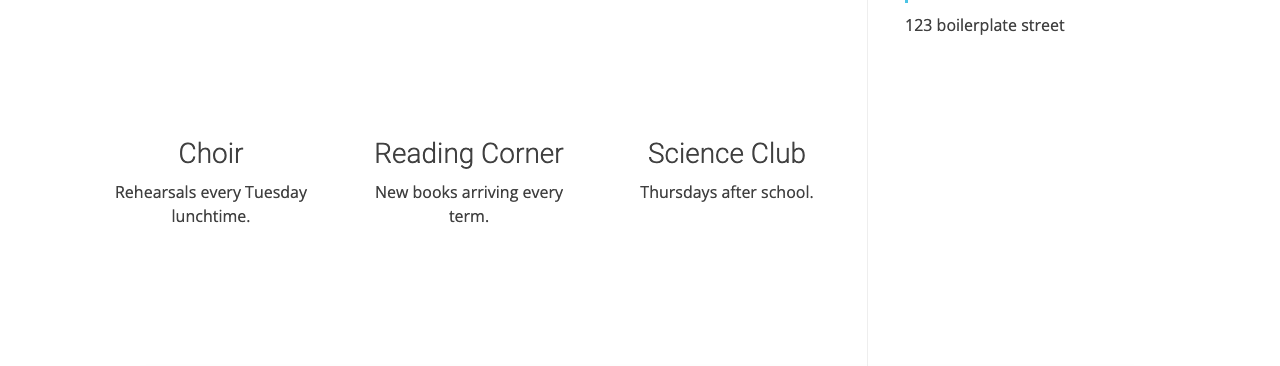
The first block starts in the centre, so with three showing, the last block appears to its left.
Features
Where to find it: typed directly into a page or post's content — there is no settings screen.
| Shortcode | Parameters | Example |
|---|---|---|
[infinite_slick_slider] |
items_per_slide |
[infinite_slick_slider items_per_slide="3"] |
| Parameter | What it does | Default |
|---|---|---|
items_per_slide |
How many blocks show side by side on a large screen | 2 |
On smaller screens the number of visible blocks is reduced automatically, regardless of items_per_slide: at most 3 on a tablet-width screen, at most 2 on a smaller screen, and 1 on a phone. The carousel always loops and centres the current block; it never moves on its own.
Use one infinite slider per page. The arrow buttons and the items_per_slide setting are shared across the page, so two sliders on one page do not work independently.
Troubleshooting
My first item is missing
Why it happens: anything before the first [block] marker is dropped — including a first item that was typed without a [block] in front of it.
How to fix it: make sure [block] appears immediately before every item, including the very first one.
Fewer blocks are showing than I set with items_per_slide
Why it happens: this is expected on a narrower screen — see the screen-size behaviour under Features above. It is not a fault.
How to fix it: nothing to fix; check the page at full desktop width to see the full items_per_slide count.
The slider does not slide, or the arrow icons are missing
Why it happens: the slider library and the arrow icons are loaded from external services when the page opens. If a visitor's network blocks them (some school filtering does), all the blocks show at once with no sliding, or the arrow buttons appear empty.
How to fix it: check the page from a different network. If it works there, ask whoever manages the school's web filtering to allow the site's scripts and icon fonts.
Did this work for you?
If a step looked different on your site, tell us and we'll update the screenshots.
Thanks for your feedback.