Test connection / Test permissions
Before you trust a school's Google Workspace or Microsoft Entra sync — or when something looks wrong — Test connection and Test permissions answer the question directly, using the exact credentials and environment the real sync engine uses, without touching anything.
The golden rule
This never changes anything. The check only reads — it lists a handful of users/groups, reads a token's granted permissions, and (for Entra) acquires a client-credentials token. It never creates, updates or deletes a user, group, licence, classroom or any other record on Google or Microsoft's side. A pass here is a real statement about whether the live sync will work, not a simulation.
Test connection vs. Test permissions
- Test connection — the minimal check: can we authenticate and make one trivial read? This confirms the service account (Google) or the tenant/client/secret (Entra) actually work.
- Test permissions — the fuller check: connection, plus a checklist of every capability the sync actually needs for this school — users, groups, organisational units, Google Classroom, Entra licensing, administrative units, class Teams — based on which of those the school has switched on. Only the areas the school actually syncs are checked; the rest show as not applicable.
With Class Teams with Assignments on, the Entra checklist has three more rows: Create Education classes (EduRoster.ReadWrite.All), Create class Teams (Team.Create) and Education licence (an active Office 365 A1, A3 or A5 in your tenant). Both permissions must be granted by name; Directory.ReadWrite.All doesn't cover them. These are the same checks the nightly sync makes before it makes any class Team.
With a year-end choice that archives class Teams (see Microsoft Teams at year end), there's an Archive class Teams row too. It's green with TeamSettings.ReadWrite.All, and amber with only Group.ReadWrite.All: archiving works with that today, but Microsoft recommends adding TeamSettings.ReadWrite.All.
Both produce a result you can come back to later; you don't have to wait on the page.
Steps
Step 1: Open Test connection
For one school: in the sidebar, under Platforms, open Sync status and choose Test connection (/v2/admin/sync/connection-test) — or use the Test connection button at the top of the Sync status page. You need the Change sync, platform & API settings permission. Only the platforms the school actually uses (Google, Entra, or both) show a card — if neither is enabled, the page says No sync platforms enabled and that there's nothing to test yet. Active Directory and Apple School Manager can't be tested here.
Step 2: Run a test
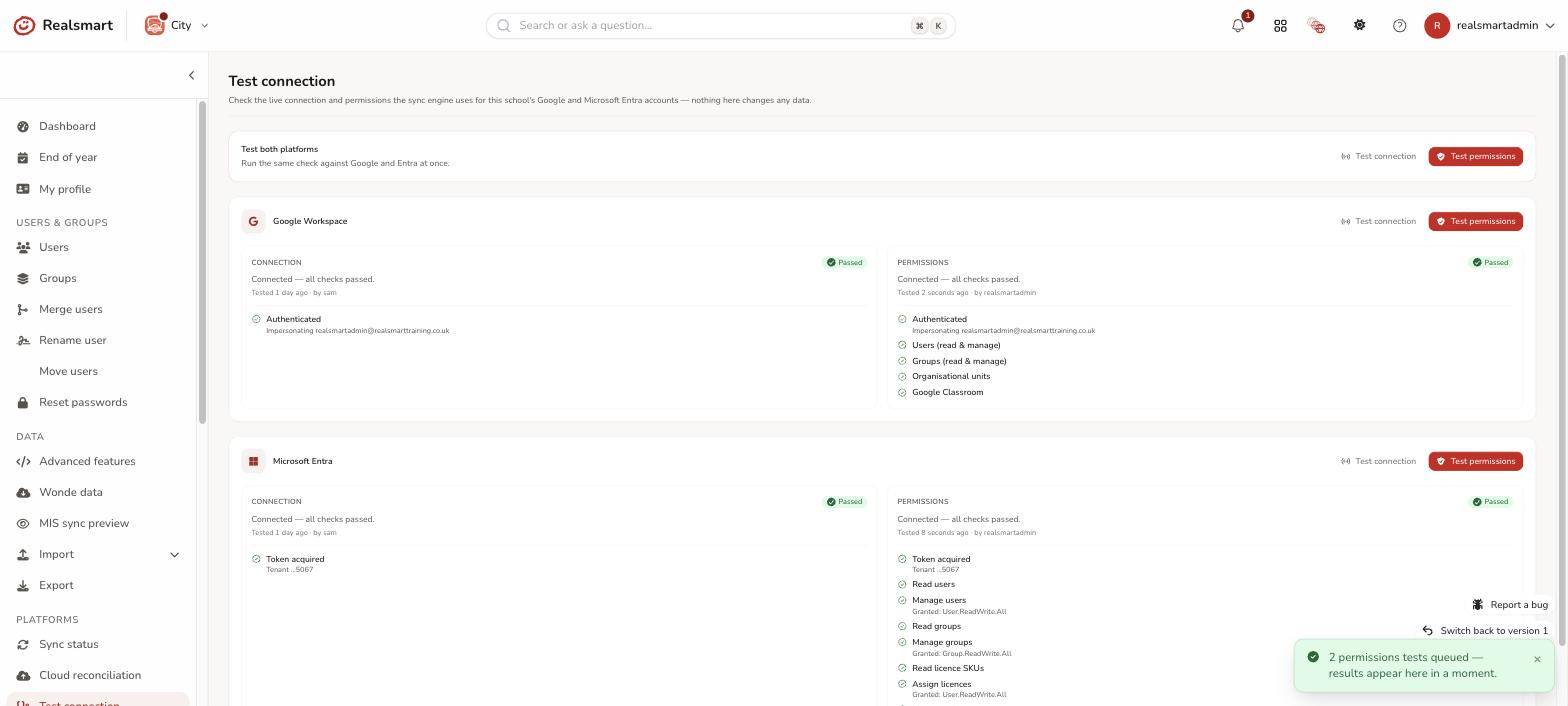
Each platform card has two buttons: Test connection and Test permissions. If the school uses both Google and Entra, an extra "Test both platforms" bar at the top runs the same check across both at once. Select a button to queue the check — it runs on the real sync engine's queue, so results usually land within a few seconds; the page polls automatically while a test is in progress.
Step 3: Read the result
Each platform card shows a Connection result and a Permissions result side by side, each with a status pill, a one-line summary (for example Connected — all checks passed. or Connected, but some permissions are missing.), when it was tested and by whom, and a checklist:
| Symbol | Meaning |
|---|---|
| ✓ (green check) | Granted — this capability works. For Entra the detail names the permission that grants it, e.g. Directory.ReadWrite.All (covers Group.ReadWrite.All). Manage administrative units passes only with AdministrativeUnit.ReadWrite.All itself — Directory.ReadWrite.All isn't enough |
| ✗ (red cross) | Missing or insufficient — the check ran but failed; the detail line explains why (for Google, an unauthorised scope; for Entra, a permission the app registration hasn't been granted) |
| — (grey dash) | Not applicable — this school doesn't sync this feature (e.g. Google Classroom is off), so it wasn't checked |
The overall pill above the checklist rolls this up:
- Passed — connected, and every relevant capability is granted.
- Warning — connected, but at least one capability is missing (see the ✗ rows for which).
- Failed — couldn't connect or authenticate at all; nothing else could be checked.
- Error — the check itself crashed before it could judge (for example School not found.). Run it again; if it repeats, contact Realsmart support.
- Not set up — the school doesn't have credentials configured yet (no Google admin user, or no Entra tenant/client/secret saved) — configure them first in Google Workspace settings or the Entra settings before testing.
A result also shows when it ran and who requested it.
Step 4: Test every school in the trust (MAT)
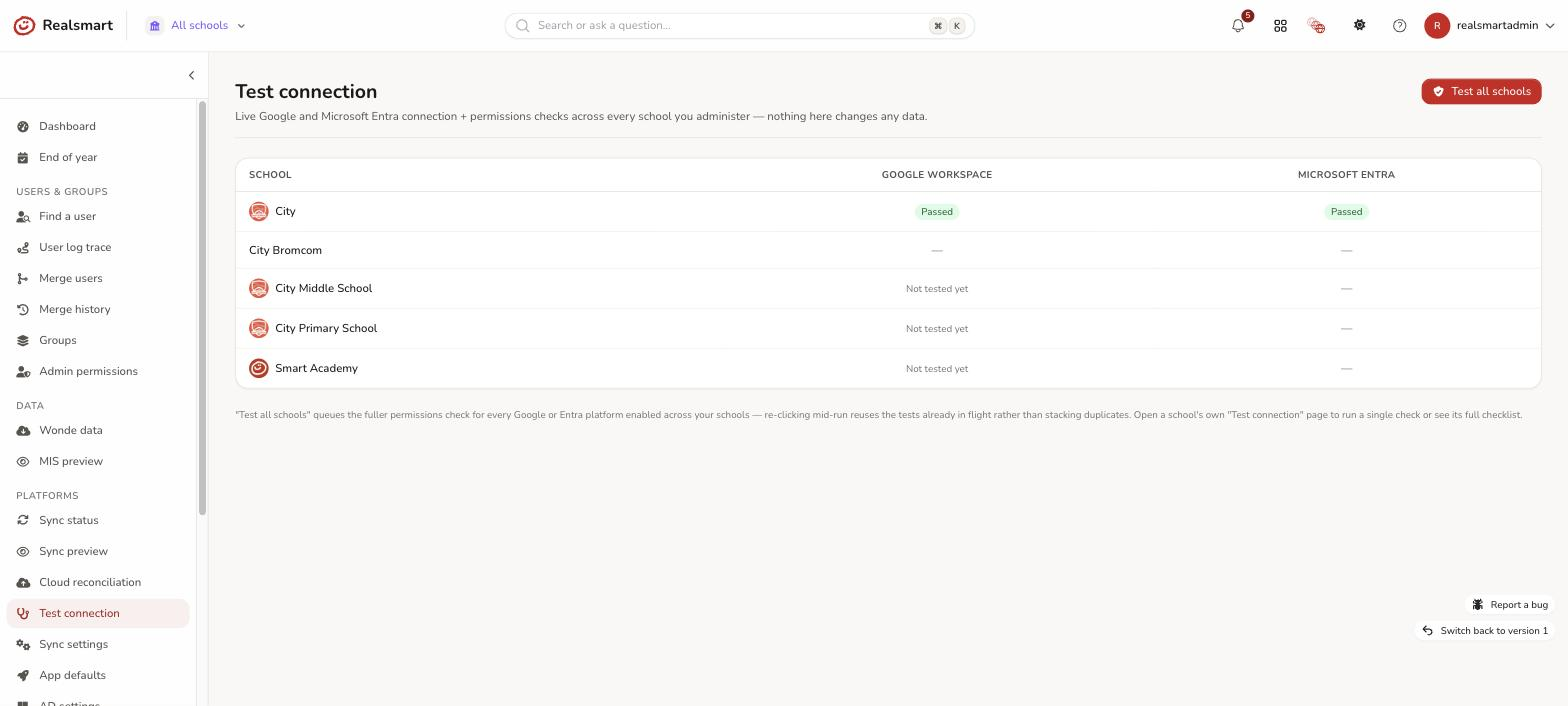
From MAT Overview, go to Test connection (/v2/admin/mat/connection-test) to see a grid of every authorised school against Google and Entra. Select Test all schools to queue the fuller permissions check for every enabled platform across every school you can access — useful before a rollout, or to spot which schools in the trust need attention. The grid only ever shows schools within your MAT access; it can't reach beyond it.
The launchpad widgets' own check
The live Google Classroom widgets on the launchpad have an access check of their own, made the same read-only way but against the access the widgets need. It lives on Google Workspace → Launchpad widgets (Check access), not on this page, and its results don't appear here. See Launchpad widgets.
The Microsoft 365 widgets have their own Check access too, on Entra sync → Launchpad widgets. One thing there depends on this page: A unit Realsmart keeps up to date needs a Test permissions run from the last 24 hours with Manage administrative units passing. See Microsoft 365 launchpad widgets.
Why this matters
A result here reflects the real sync engine's own environment — the same service account, the same per-school Entra app registration, the same scopes — so a pass is trustworthy evidence the live sync will work, and a fail tells you exactly what's missing before the nightly sync run finds out the hard way. If the live sync is already failing, start here before digging into sync errors: a connection/permission problem usually explains a whole cluster of failures at once.
Troubleshooting
What the failure lines mean:
| Line | Meaning and what to do |
|---|---|
| Insufficient permissions — this scope is not authorised for the service account. (Google) | Realsmart's Google service account isn't allowed one of the scopes. A Google super admin needs to re-authorise domain-wide delegation — see Google Workspace settings |
| Domain-wide delegation isn't authorised for … (or the admin user is wrong). (Google) | Either delegation isn't set up for the Realsmart service account, or the admin user saved on the Google settings page is wrong, suspended, or no longer an admin. Check the admin user, then delegation |
| Not found — the domain or resource could not be located. (Google) | The domain saved for the school doesn't match your Google domain |
| No Google admin user is set for this school. | Same as Not set up — enter the Google domain and admin user first |
| Entra tenant, client ID and secret are not all set for this school. | Same — enter them in Microsoft Entra settings |
| The stored client secret could not be read — re-enter it in Entra settings. | Re-enter the Entra client secret and save |
| Missing … (grant admin consent for it in Entra). | Add the named application permission to the app registration and grant admin consent, then Test permissions again |
- "It says 'not set up'" — the school's Google admin user/domain, or Entra tenant/client ID/secret, hasn't been entered yet. Nothing was attempted against Google or Microsoft — enter the credentials first.
- "Connection passed but permissions show warnings" — authentication works, but a specific permission the sync needs hasn't been granted. For Google, re-authorise domain-wide delegation for the missing scope named in the detail line (see Google Workspace settings). For Entra, the ✗ row names the exact Microsoft Graph permission that's missing. Add that application permission to the Realsmart Entra Sync app registration, select Grant admin consent, then run Test permissions again. The full list is under Microsoft Graph permissions to grant in Microsoft Entra settings.
- "I ran it and nothing changed on Google/Entra's side" — correct, and expected — that's the whole point. If you need to see the effect of a real change, use the sync itself, not this check.
Did this work for you?
If a step looked different on your site, tell us and we'll update the screenshots.
Thanks for your feedback.