What the Microsoft 365 widgets can read
In step 1 of the Microsoft 365 widgets you choose which mailboxes the access covers. Your Exchange administrator then grants Realsmart's Mailbox app read access over exactly that scope, and Exchange refuses everything outside it. This page covers the scope you choose, the people Realsmart never reads, what it reads and keeps, and how to remove its access.
Scope types
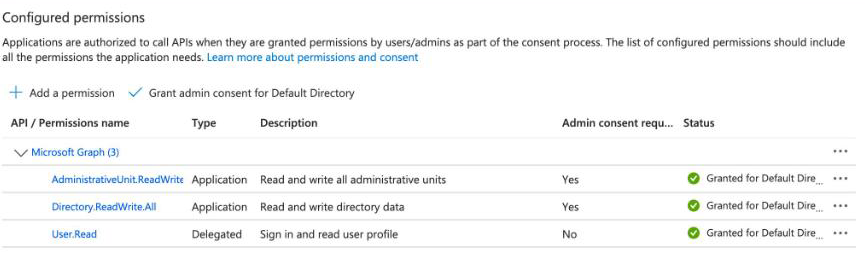
- A unit Realsmart keeps up to date (recommended). Realsmart keeps an administrative unit, "Realsmart Launchpad scNNNN", holding exactly the people you chose minus exclusions, through your Entra sync app. It makes the unit about 10 minutes after you save this choice — before the widgets are on, because part 2 needs it — updates it within 10 minutes of a change in step 1, and twice each sync day for people joining or leaving. Exchange itself refuses everyone else, including the people you exclude. It needs Sync administrative units on under Entra sync → Settings, your Entra sync app to hold AdministrativeUnit.ReadWrite.All itself (Directory.ReadWrite.All isn't enough), and a Test permissions run from the last 24 hours on the Test connection page with Manage administrative units passing, each time you save this choice; Realsmart never asks you to add a write permission for this. Part 2 of the script appears once the unit exists. If someone deletes it in Entra, Realsmart makes a new one and the page asks you to run part 2 again.
- Your own administrative unit or management scope — for example the per-school unit School Data Sync keeps. Enter its object ID or the management scope's name. Exclusions are then enforced by Realsmart's code, not by Exchange.
- Every mailbox in the tenant — only when yours is the only Realsmart school in the tenant, and you tick to confirm. Exclusions are enforced only by Realsmart's code. If another Realsmart school joins your tenant, calendar and email pause and the page asks you to switch to a per-school scope.
People Realsmart never reads
Under People Realsmart never reads in step 1, add anyone whose calendar and inbox must stay out of reach — for example your designated safeguarding lead, HR or the headteacher (up to 50 people). Each change applies straight away. With A unit Realsmart keeps up to date they're left out of the unit, so Exchange itself refuses them; with the other two scopes, Realsmart's code skips them.
What Realsmart reads and keeps
- Calendar: today's and tomorrow's events — time, title (never for private or confidential events), place and Teams join link. Never the body, attendees, organiser or attachments.
- Email: the inbox's unread count only. Exchange's
Mail.ReadBasicrole would allow subject lines, senders and recipients in the mailboxes you chose; Realsmart's code never requests them, and never message bodies or attachments. - School calendars: the next 14 days of events in the shared mailboxes you chose, without private ones.
- Teams: for each pupil, their own assignments' titles, due dates and hand-in states; for each class, counts of hand-ins waiting; class names and teacher names. Never grades, feedback, instructions or other pupils' work.
None of it is stored in Realsmart's database. It is held in a short-lived cache for about a day and replaced at each refresh. Turning the widgets off, or setting the scope to "Don't read calendars or email", removes it within about a day.
One tenant, many schools
When several schools share a Microsoft 365 tenant:
- the Classes app is approved once for the whole tenant — every school's step 2 then says Already approved for your tenant;
- part 1 of the script is run once; each school runs its own part 2 with its own scope;
- each school still checks access, chooses its own widgets and turns them on itself;
- "Every mailbox in the tenant" isn't offered.
From the MAT overview, Launchpad widgets groups the trust's Microsoft schools by tenant: whether the Classes app is approved, whether the Mailbox app is in the tenant, how many schools are on, and one line if the tenant needs attention.
Removing access
- Turn off stops Realsmart reading straight away but keeps your setup and Realsmart's administrative unit. To empty the unit, set step 1 to Don't read calendars or email (or another scope type) and save — Realsmart empties it within about 10 minutes while Entra sync is on. It doesn't delete the unit.
- In Exchange, remove the "Realsmart Launchpad scNNNN" role assignments and management scope. Then you can delete the "Realsmart Launchpad scNNNN" administrative unit in Entra — only after changing step 1 away from A unit Realsmart keeps up to date, or Realsmart makes a new one.
- To end all access at once, a Global Administrator deletes the two Realsmart Launchpad enterprise applications in Entra. Every school in the tenant then shows Needs attention.
Troubleshooting
-
"A unit Realsmart keeps up to date" is greyed out, or won't save. Under Entra sync → Settings, make sure Sync administrative units is on, and that your Entra sync app has AdministrativeUnit.ReadWrite.All itself (Directory.ReadWrite.All isn't enough), with admin consent. Then run Test permissions on the Test connection page: Manage administrative units must pass, and a pass counts for 24 hours. Or choose your own scope.
Related
Was this guide helpful?
We read every response — it decides what we rewrite next.
Thanks for your feedback.