Switch theme and colour theme
ADAdmin has two appearance settings, and you can combine them however you like:
- Theme — light mode, dark mode, or follow your device's setting.
- Colour theme — the colour of buttons, links and highlights: Realsmart, Sapphire, Ocean, Navy, Grape, Orchid, Mulberry, Dusk, Graphite or Cocoa.
Both are saved to your account and applied every time you sign in, on any device. Everyone can change them — admins, mentors, learners and every other role. The fastest way is the toggle in the top bar. The Profile page on Realsmart sign-in has the same choices, and My profile has the colour theme.
Steps
Step 1: Open the theme toggle
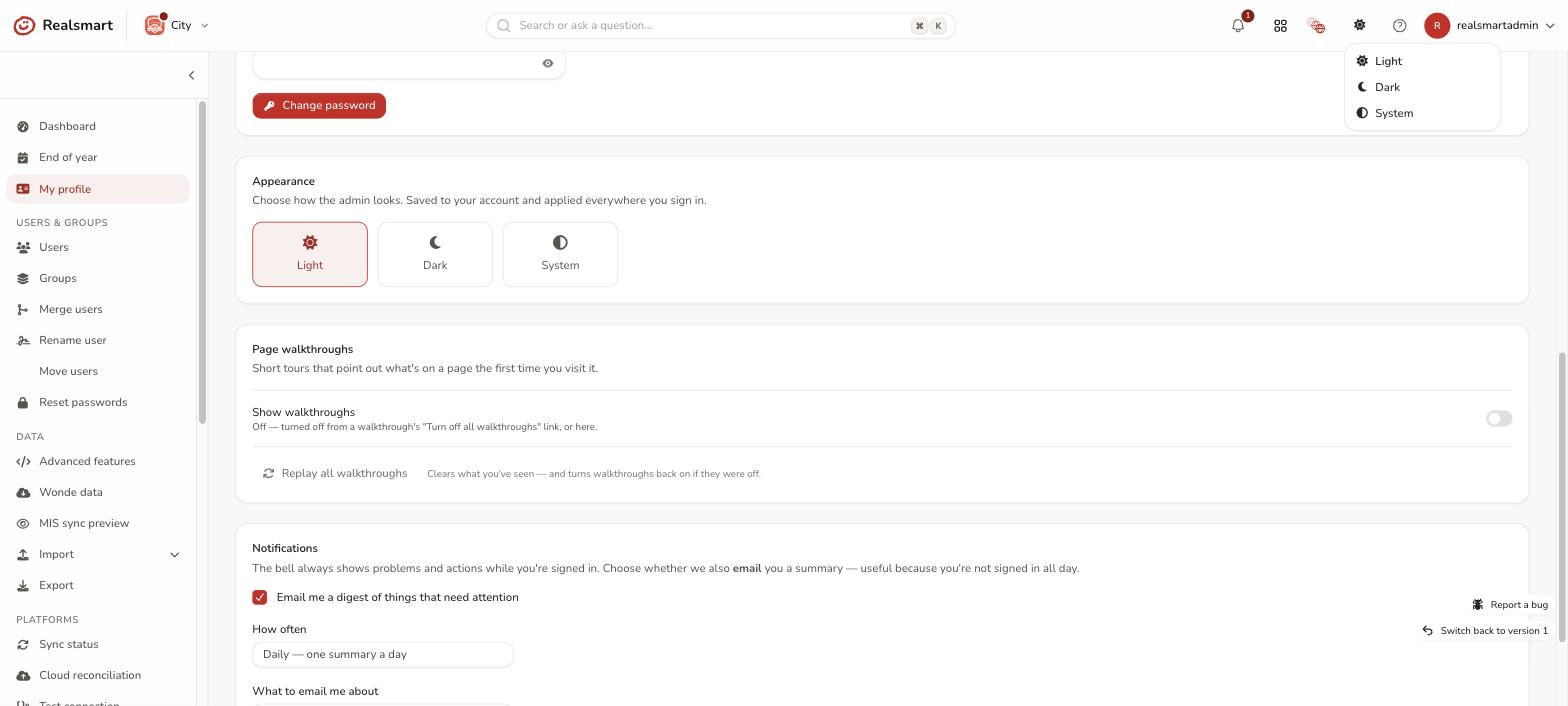
Every signed-in user (admin, mentor, learner, or any other role) has a theme icon in the top bar, next to the apps launcher — a sun, moon, or half-circle depending on your current setting. No need to open your profile first. (On a phone the icon is hidden to save space — choose your colour theme on My profile and light or dark mode on the Profile page, described below.)
Step 2: Choose a theme
Select the icon to open the menu, then pick:
| Option | What it does |
|---|---|
| Light | Always uses the light (white/cream) colour scheme |
| Dark | Always uses the dark (charcoal) colour scheme |
| System | Follows your device's system preference — light or dark as your OS is set (called Match device on the Profile page) |
The change applies instantly, with no page reload and no flash, and is saved to your account straight away.
Step 3: Choose a colour theme (optional)
The same menu has a Colour theme section underneath. Pick one and the page recolours straight away:
| Colour theme | Looks like |
|---|---|
| Realsmart | Calm indigo — the default |
| Sapphire | Clear mid blue |
| Ocean | Deep sea blue |
| Navy | Deep, slightly greyed navy |
| Grape | Royal purple |
| Orchid | Soft orchid |
| Mulberry | Red-violet, leaning towards pink |
| Dusk | Muted violet-grey |
| Graphite | Quiet slate, almost no colour |
| Cocoa | Warm brown-grey |
A colour theme changes buttons, links, the highlighted menu item, keyboard focus rings and other highlights. It works with light and dark mode alike. It does not change the colours that carry meaning: warnings stay gold, errors stay red, healthy sync status stays green, and the Realsmart logo stays red. That's also why there's no red, orange or green theme — they'd make routine buttons look like warnings or status messages.
Result
Your theme and colour theme are saved to your account. The next time you sign in — on any browser or device — they're applied automatically without a flash. Your choice only affects what you see; nobody else's view changes.
The alternative — from My profile
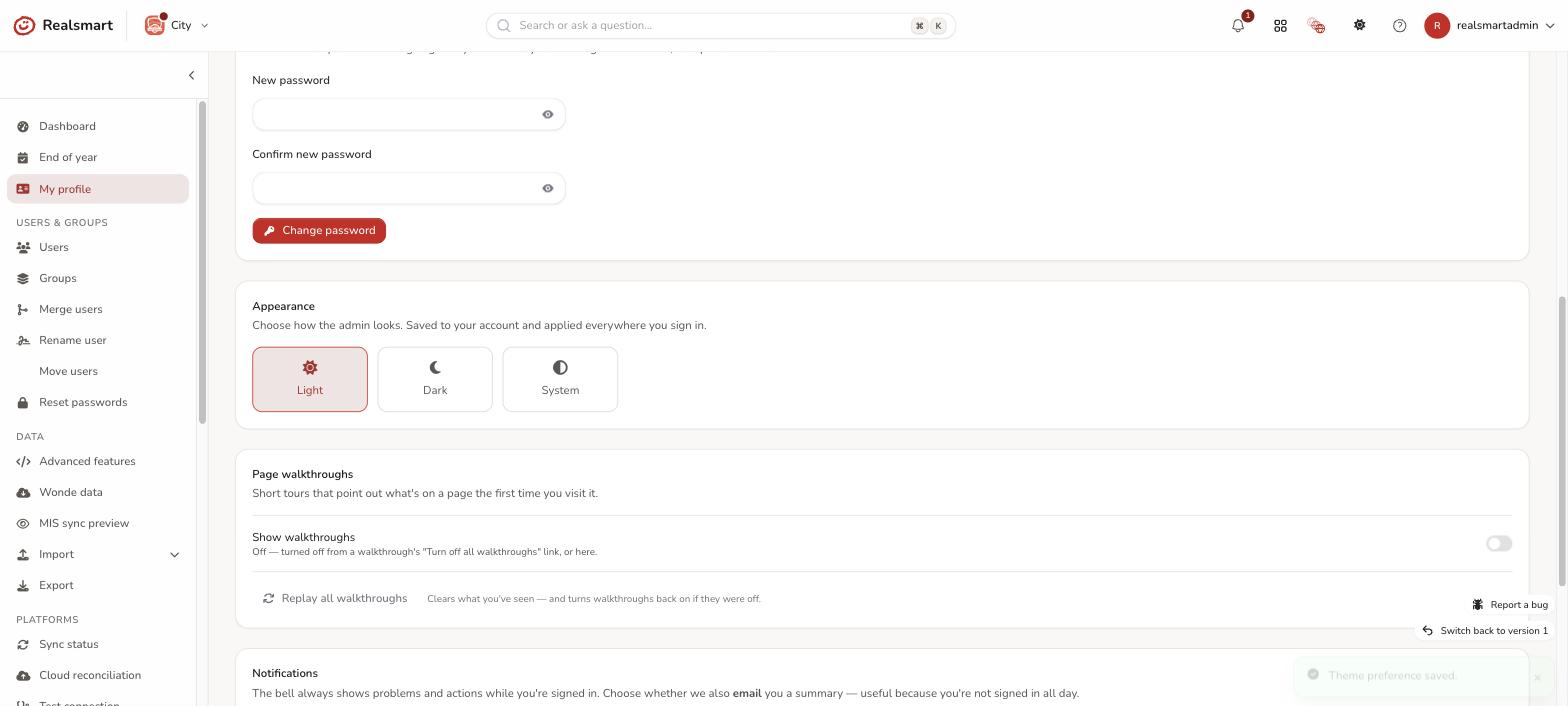
Prefer to change it alongside your other account settings? Open My profile (select your name or picture at the top right, then My profile) and use the Colour theme card — it has the ten colour themes and applies just as instantly. See View your profile.
My profile says your password, photo and look have moved, so light or dark mode is chosen on the Profile page on Realsmart sign-in instead, under Look (Light, Dark or Match device), or with the top-bar toggle. The Look section there has the colour themes too, and the profile menu on the Realsmart bar has both choices. It's the same setting everywhere, so a change in one place shows in the others.
Related
Did this work for you?
If a step looked different on your site, tell us and we'll update the screenshots.
Thanks for your feedback.