Create a group
Add a new group (cohort or teaching set) to the current school. Once created, you can add members to it and it will sync to connected platforms.
Before you start
- You must be an admin with the Manage users & groups permission for the current school.
- Switch to the school first. You can't add a group while you're viewing all schools in MAT overview.
- Group names must be unique within the school. Letters, numbers, dashes, and underscores only.
- If you need to create many groups at once, the Advanced user import creates any group named in its
groupscolumn — see Import users and cohorts. (Cohort import only adds people to groups that already exist — see Cohort import.)
Steps
Step 1: Open the Groups page
Select Groups in the left sidebar (under Users & Groups).
The list of groups for the current school opens. Its heading shows how many groups there are, for example 42 groups.
Step 2: Start a new group
Select Add group in the top-right corner of the page.
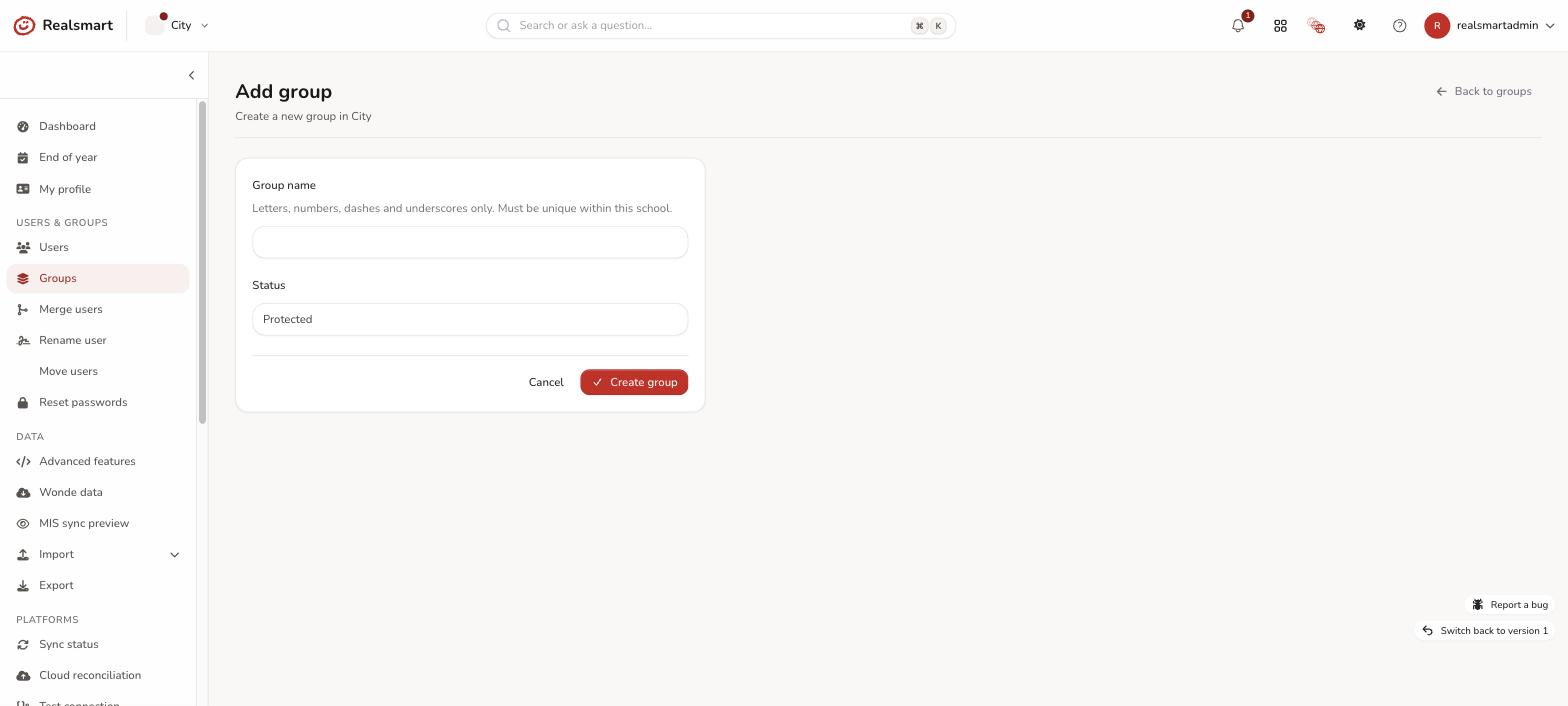
The "Add group" form opens.
Step 3: Enter the group name
Enter a Group name.
Rules:
- Letters, numbers, dashes (
-), and underscores (_) only - Must be unique within this school
- No spaces
Examples: Year-7, 10_Maths_1, 6thForm-English
Step 4: Set the status
Choose a Status:
- Protected — the group is kept as you set it up. The MIS import doesn't add people to it or take anyone out, and it isn't suspended when it has nobody in it.
- Active — a normal working group. If nobody is in it, the next MIS import sets it to Suspended.
- Suspended — the group exists in Realsmart but isn't kept up to date in Google or Entra, and it doesn't get a Google Classroom. A group that stays Suspended (or Deleted) for 90 days — your school's retention period — is removed from Realsmart for good.
The form starts with Protected already selected — that's the safer default for a brand-new group, because an empty Active group is suspended by the next MIS import before you've had a chance to add anyone. Leave it as Protected if you're not sure. Switch to Active only when the group has members and you want it to behave like the rest of your MIS groups.
Step 5: Create the group
Select Create group.
Result
You see Group created. and the new group's page opens on the Details tab. The group has no members yet. Go to the Members tab to add people — see Add a user to a group.
The group page has these tabs: Details, Members, Cloud (only when your school syncs to Google or Microsoft Entra), Logs and Classroom. See Group membership options for what each one holds.
The group is sent to Google Workspace and Microsoft Entra straight away, where those are switched on. Google doesn't keep a group with nobody in it, so the Google group appears once the group has its first member — or straight away if you tick Preserve the group even when it has no members on its Details tab. While cloud sync is paused for the school, a banner at the top of the page says Cloud sync is paused until … and the group is saved in Realsmart now and sent when sync resumes.
If Google Classroom is on for your school, a group with at least one member of staff in it also gets its own Google Classroom: its staff become the teachers and its pupils the students. See Create a Google Classroom for any group.
Troubleshooting
- "The name has already been taken." — the name must be unique within the school. Try a different name.
- "The name must only contain letters, numbers, dashes and underscores." — remove any spaces or special characters from the name.
- "The name field is required." — enter a name before you select Create group.
- "I need to create many groups at once" — use the Advanced user import: any group named in its
groupscolumn is created. See Import users and cohorts. - "Users keep being removed from a group I created manually" — group membership generally follows the MIS import: anyone the MIS sync doesn't list for that group can be removed at the next sync, unless their membership is locked or the group itself is Protected — see "Lock (the padlock)" in Group membership options. In practice you rarely need to lock members by hand: adding someone through Add a user to a group, from the user's own Memberships tab, or via the Add to group bulk action already locks that membership immediately (the padlock shows closed on their row), so a manually-added member shouldn't be swept out by the next sync unless the padlock is later reopened.
- "My new group isn't in Google or Entra" — check the group's Cloud tab. Groups you create by hand are the Groups type: if that type isn't ticked under Group types to sync in your school's Google or Entra settings (leaving every type unticked syncs them all), or Sync this group to Google / Sync this group to Microsoft Entra is off on the group's Details tab, the group isn't synced. Google also doesn't keep a group with nobody in it. See Google group settings and Microsoft Entra settings.
- "A group has disappeared from the list" — a group that stays Suspended or Deleted for your school's retention period (90 days unless Realsmart has set a different one) is removed for good. Empty Active groups become Suspended at the next MIS import, so use Protected for groups you want to keep.
- "My new group went to Suspended" — it was Active with nobody in it, and the MIS import suspends empty Active groups. Add people to it and set it back to Active, or set it to Protected on its Details tab.
- "I deleted a group and it came back" — if your MIS still lists a group with that name, the next MIS import makes it Active again. Set it to Protected if you want the MIS to leave it alone.
Related
Did this work for you?
If a step looked different on your site, tell us and we'll update the screenshots.
Thanks for your feedback.