See what Google and Entra say about a user (Cloud tab)
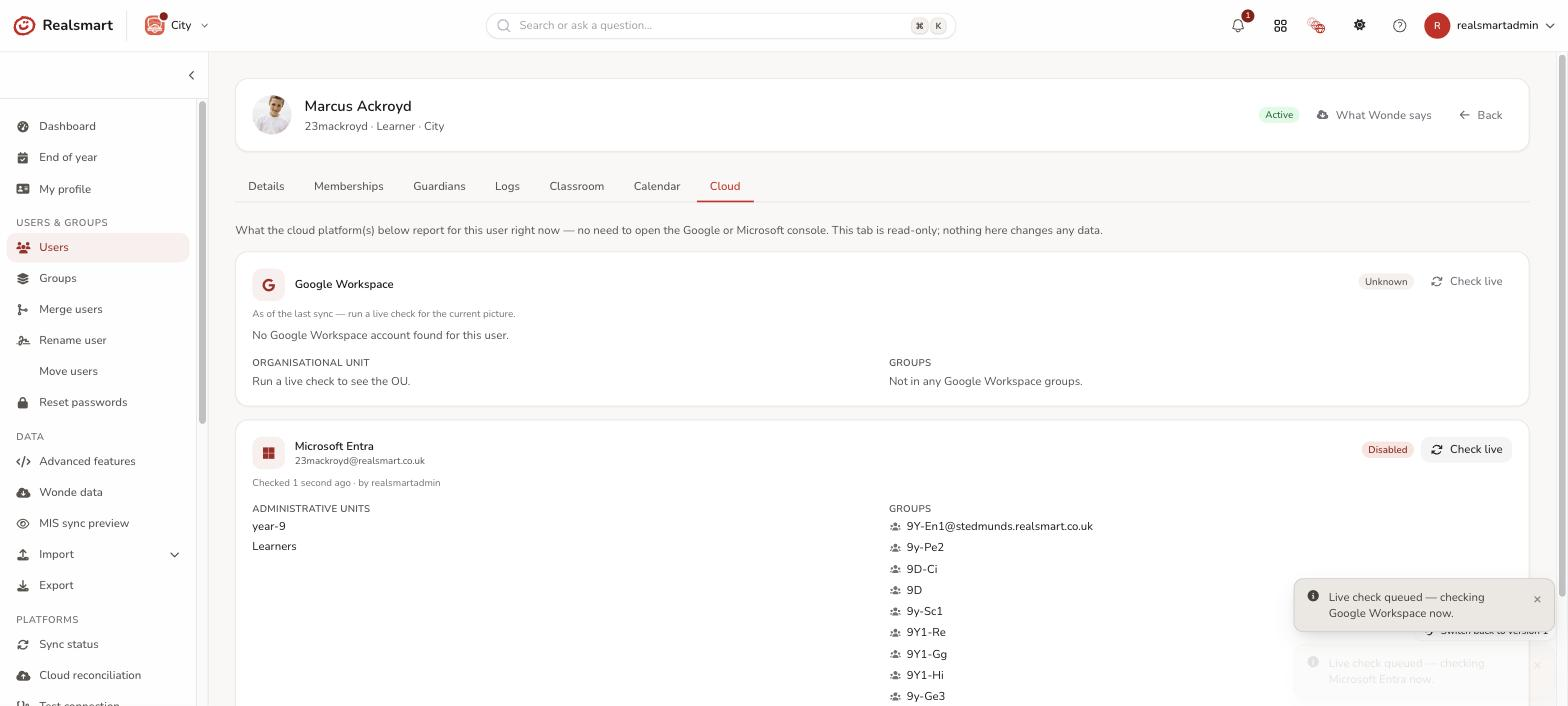
The Cloud tab on a user's edit page shows what Google Workspace and/or Microsoft Entra currently report for this person — their organisational unit (Google) or administrative units (Entra), group memberships, and account status (Active/Suspended in Google, Enabled/Disabled in Entra) — without you needing to open the Google Admin console or the Entra portal yourself.
Before you start
- You need the same access as for the rest of the edit page: an admin for the user's school, with that school selected (see Edit a user).
- The tab only appears when your school syncs to Google or Entra.
- Read-only, and needs no Google/Entra login. This tab never changes anything on either platform, and there's nothing to sign into — ADAdmin fetches the data on your behalf using the same credentials the background sync already uses.
Steps
Step 1: Open the Cloud tab
Open the user (see Edit a user) and select the Cloud tab. At a school that syncs to Microsoft Entra, the Entra sync problem or Not created in Microsoft 365 badge in the page header opens it too. Like Logs and Classroom, it loads on demand.
There's one card per platform your school uses, headed by the person's address there.
Step 2: Read what the last sync recorded
Each card first shows As of the last sync — an instant first paint from ADAdmin's own records (from the last time the background sync ran). It shows their groups and, for Entra, whether the account is enabled and which licence it holds. The organisational unit and administrative units aren't kept locally, so they show Run a live check to see the OU (or None — run a live check to confirm), and a Google account's status reads Unknown, until you check live.
Step 3: Check live
Select Check live on a platform's card to fetch the current picture straight from Google or Entra right now. This can take a few seconds; the card updates automatically when it's done, and shows who ran the check and when.
A live check may come back not found — the card names the address it looked for, for example No Google Workspace account found for … — or isn't set up for this school, or with an error (for example, the school's Google/Entra connection needs attention). Any of these shows directly on the card.
Entra cards
Entra cards also show Last Entra sync result — OK, Warning, Problem, Account not created or No recent activity over the last 14 days, with what it means and What to do — and any Licences. See Entra sync issues.
Troubleshooting
- "There's no Cloud tab" — your school isn't syncing to Google or Microsoft Entra, so there's nothing to show.
- "The OU says Run a live check" — the organisational unit and administrative units aren't kept in ADAdmin; select Check live.
- "No Google Workspace account found for …" — Google has no account at that address. If the person should have one, see User not syncing.
Related
Did this work for you?
If a step looked different on your site, tell us and we'll update the screenshots.
Thanks for your feedback.