Every Smart Parents feature, and how to switch it on
Smart Parents is the app parents use to keep up with their child's school, and that staff use in teacher mode. Most features are off until your school turns them on. The first section says what each feature does; the second is one checklist for switching them all on.
Everything is on Smart Parents in the sidebar (under Engagement), and you need to be an admin who holds Manage Smart Parents to change it. The page has nine tabs: Settings, App coverage, Students, School Story, Photo consent, Parents, Events, Notifications and Website. Only Settings, Students, Parents and Notifications are also in the sidebar; open Smart Parents and choose the others from the tab bar.
The features
- Parent app and PINs. A parent signs up in the app and links each child with a PIN the school gives them. One parent account covers children at more than one school.
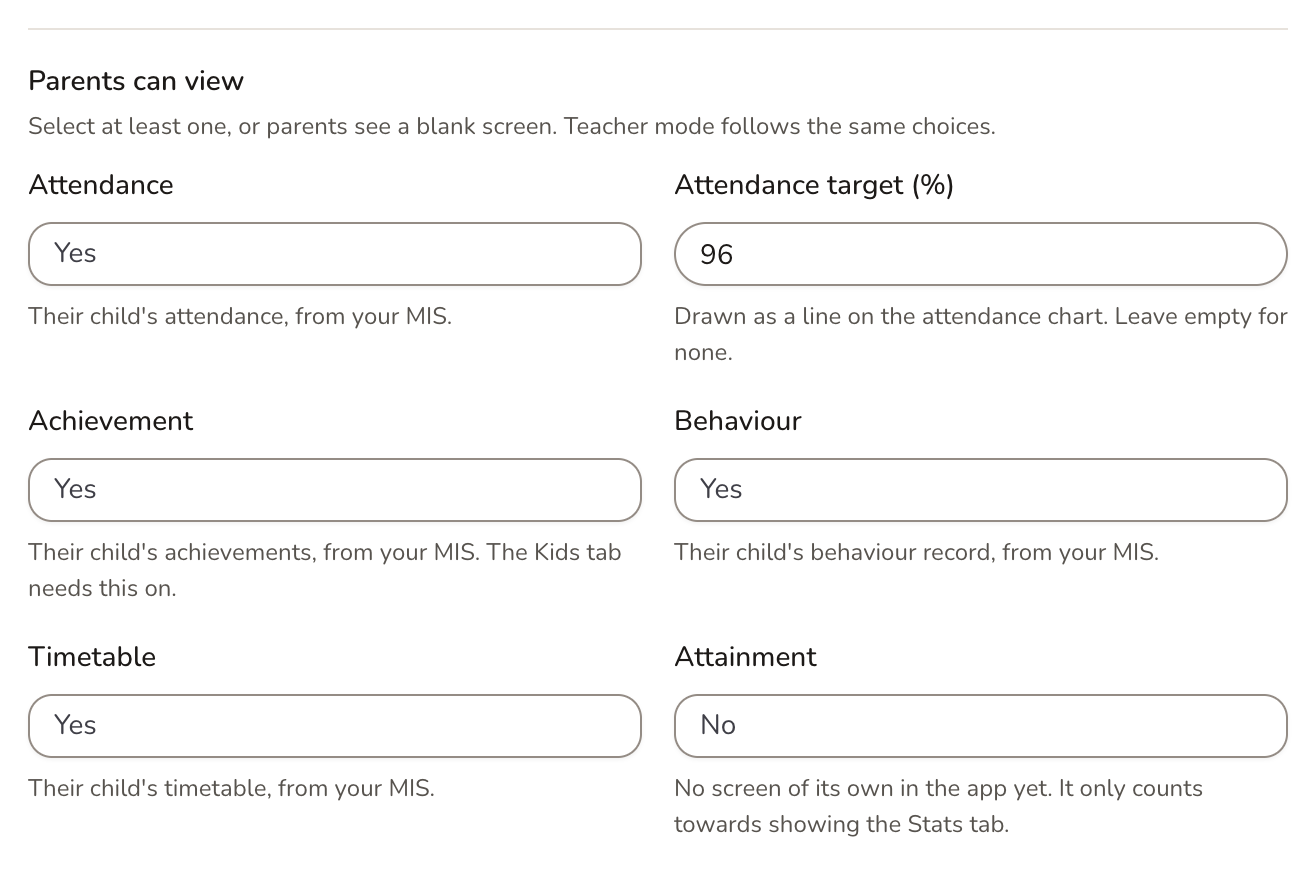
- What parents can see. Your choice of attendance, achievement, behaviour and timetable, straight from your MIS. Each one is on or off for the whole school. You can also set an attendance target, drawn as a line on the attendance chart.
- Classwork. Parents see the titles and due dates of their own child's Google Classroom or Teams work, for the year groups you choose: never the work itself, grades or comments. Realsmart switches it on when it's ready; until then you won't see the setting. See Classwork in Smart Parents.
- Notices. Messages to parents, with attachments, that buzz their phone. Send them from the Notifications tab here, from Add parent notice in the sidebar (mentors) or from teacher mode. See Add a parent notice and Parent notices list and delivery numbers.
- Comments on notices. Parents can ask a question under a notice and staff reply in the app. Off unless the teacher sending the notice allows it. See Moderate comments on parent notices.
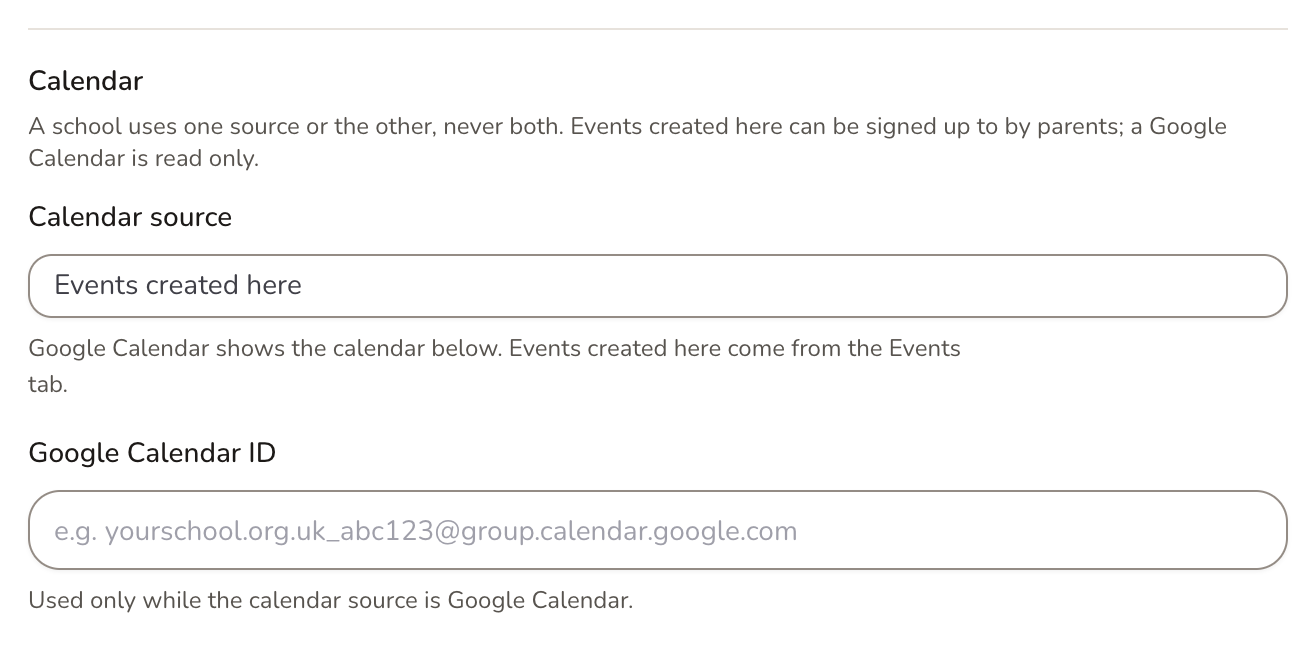
- Calendar and event sign-ups. Parents see either your Google Calendar, or events you create here that they can sign up to, so you know who's coming. Parents choose their own reminders in the app. See Smart Parents events and sign-ups.
- Website news, events and alerts. Your school website can send news as notices, its calendar events, and its Smart Alert as an urgent notice. See Send website news, events and alerts to the Smart Parents app.
- School Story. A feed of photos and news that staff post from teacher mode. A child only appears in photos when the school or a linked parent has said yes and nobody has said no. See The School Story and Photo consent for the School Story.
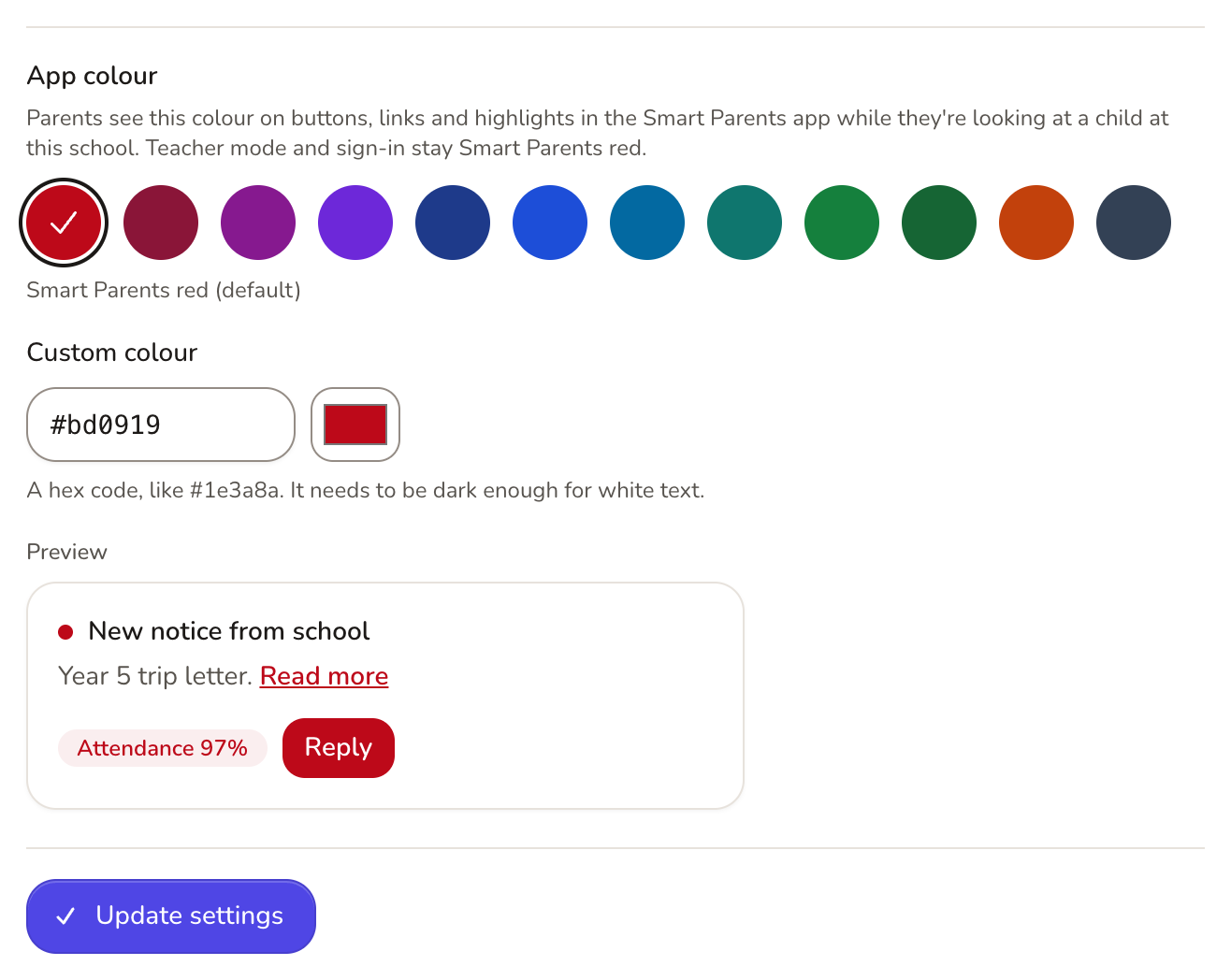
- App colour. Buttons, links and highlights take on your school's colour while a parent is looking at a child at your school.
- App coverage. Class by class, how many pupils have a parent on the app and how many parents a notice would buzz. See Smart Parents app coverage by class.
- Teacher mode. Admins and mentors sign in to the same app with their school account to see what's on today, look up a pupil's record, send notices and post to the School Story. Mentors see pupils in their own classes; admins see any pupil. It only works while Smart Parents is Enabled for the school, and only for admins and mentors, not other staff such as governors or observers.
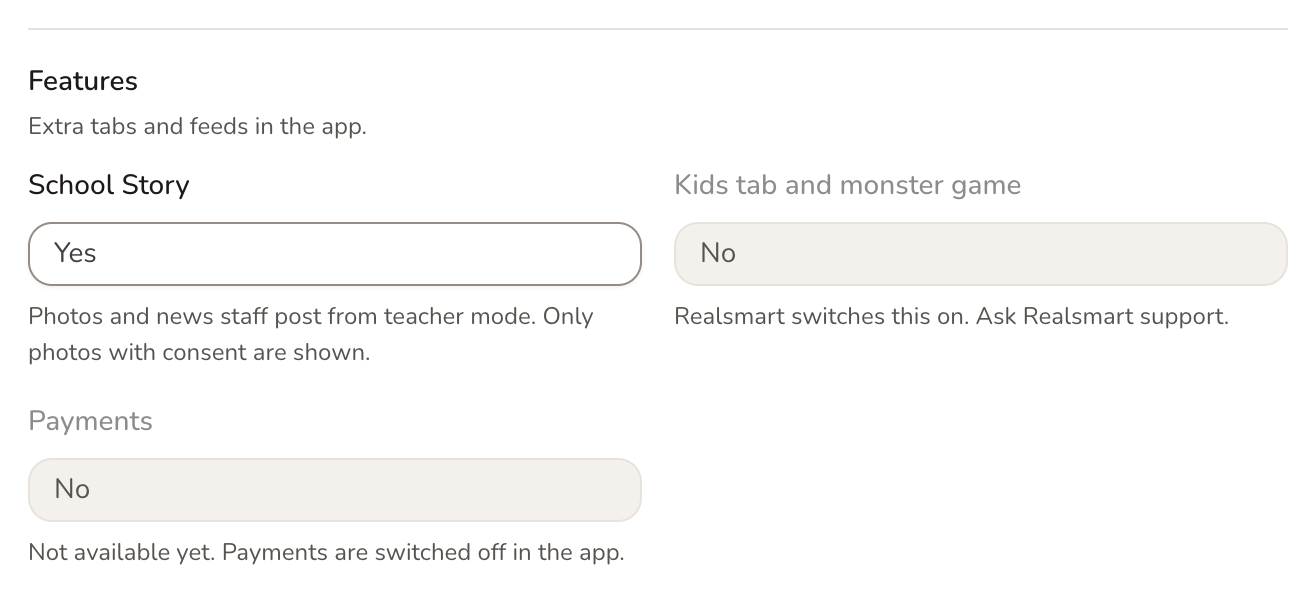
- Kids tab and monster game. On their parent's phone, children earn coins for the praise your school records and spend them on their own monster. Realsmart switches it on.
- Parent survey. A short survey in the app. Only Realsmart can add one.
- SOS parent check. For schools that use SOS: Smart Parents asks SOS whether a parent may see a child before showing them anything.
Turn everything on
Work down this list. Settings on the Settings tab are saved with Update settings at the bottom.

-
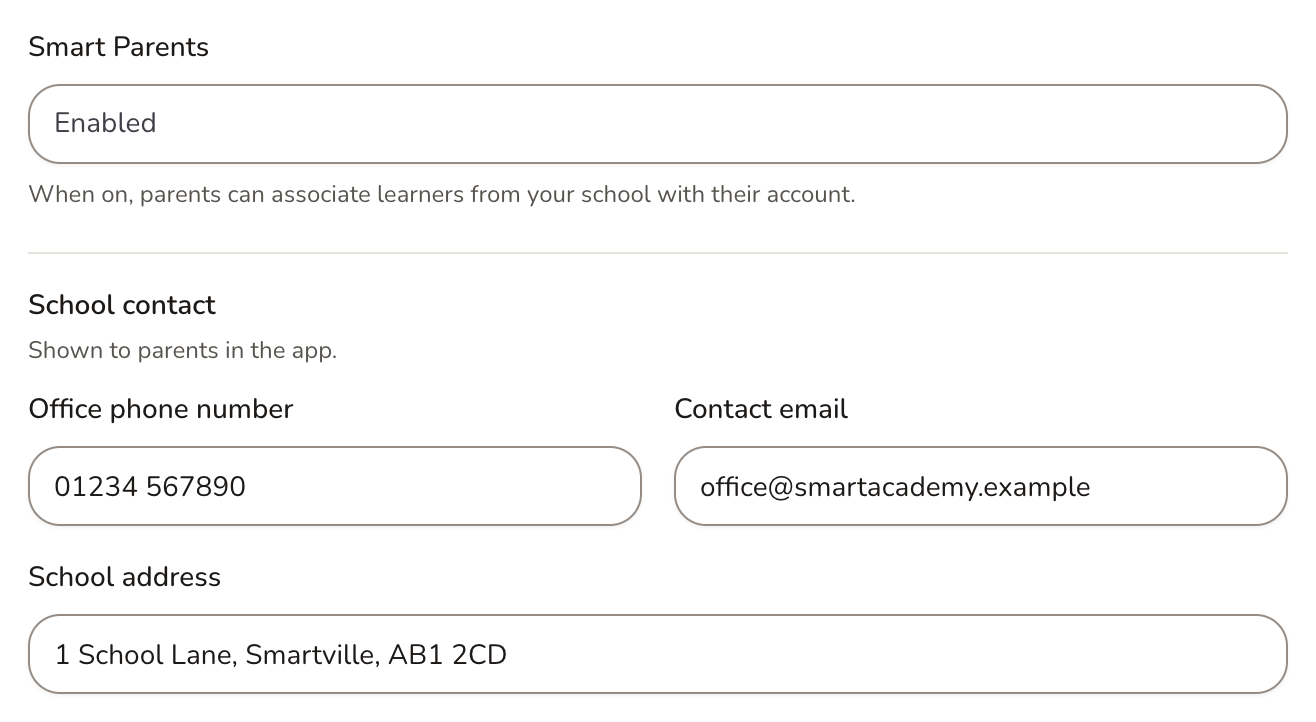
Switch Smart Parents on. On the Settings tab, set Smart Parents to Enabled. Under School contact, fill in Office phone number, Contact email and School address (the app's Contact screen shows the phone number and email today, not the address). Nothing else works until this is on.
-
Choose what parents can see. Under Parents can view, set Attendance, Achievement, Behaviour and Timetable to Yes for each one you want, and fill in Attendance target (%) if you want a target line on the attendance chart. Choose at least one, or parents see a blank screen. Teacher mode follows the same choices. Attainment has no screen in the app yet.
-
Switch on the School Story and Classwork. Under Features, record photo consent on the Photo consent tab before you set School Story to Yes: a pupil with no answer never appears in photos. If you see Classwork (homework and assignments), follow Classwork in Smart Parents first: your privacy notices must cover it, and pupils must be told. If you don't see it, it isn't available yet: ask Realsmart support.
-
Choose the calendar. Under Calendar, set Calendar source to Events created here so parents can sign up to events, then add events on the Events tab. Or choose Google Calendar and fill in Google Calendar ID. Add your events before you switch: nothing is copied across.
-
Pick the app colour, then save. Under App colour, choose a swatch or type a hex code into Custom colour, check the Preview, and select Update settings. The colour must be dark enough for white text. If you don't see App colour, it isn't available yet.
-
Hand out PINs. On the Students tab, select pupils and Generate PINs, then give each parent their own child's username and PIN, never the whole export. Use App coverage to see which classes to chase.
-
Connect your website. On the Website tab, select Connect website and paste the token into WordPress under Smart Plugins → Smart Parents app (or Settings → Smart Parents app on a site without the Smart Plugins menu). Then turn on News as notices, Events in the app calendar and Smart Alert as an urgent notice as you need, and select Save changes. You need to be an admin who can send notices to every parent. See Send website news, events and alerts to the Smart Parents app.
-
Tell staff about teacher mode. There's no switch of its own: admins and mentors just sign in to the Smart Parents app with their school account once Smart Parents is Enabled. Comments are switched on per notice, by switching on Allow comments when sending from teacher mode.
-
Ask Realsmart for the rest. Contact Realsmart support to switch on the Kids tab and monster game (it's shown under Features, but only Realsmart can change it; it needs Achievement set to Yes, and counts praise from the day it's switched on), or to add a parent survey. For SOS parent check, choose its Mode on the Settings tab, but ask Realsmart to set up your school's SOS token first: until then it stays off. If you don't see SOS parent check, it isn't available for your school.
If parents can't see a feature
- Check that Smart Parents is still Enabled on the Settings tab, and that you selected Update settings.
- Ask the parent to update the app from the App Store or Google Play. Newer features need the latest version.
- Ask them to pull down on the screen to refresh, or to sign out and back in.
- If the problem is adding a child ("That username or PIN doesn't match a child at this school…"), see If something doesn't work in Smart Parents settings.
Related
- Smart Parents settings
- Classwork in Smart Parents
- Smart Parents events and sign-ups
- Send website news, events and alerts to the Smart Parents app
- The School Story
- Photo consent for the School Story
- Smart Parents app coverage by class
- Add a parent notice
- Moderate comments on parent notices
- Parent notices list and delivery numbers
Was this guide helpful?
We read every response — it decides what we rewrite next.
Thanks for your feedback.